
LinkedIn has no one-click button to sync your connections into HubSpot, so a market of tools grew to fill the gap. They are not interchangeable: some copy profiles into the CRM, some manage your inbox, some sell enrichment credits, and one tracks whether your outreach worked before anything reaches the CRM. Below are the ten real options in 2026, what each costs, and who each is actually for.
The short answer
| Tool | Best for | Price |
|---|---|---|
| Outscore | tracking outreach, then syncing what worked | Free to start, $79/yr, $10/mo, or $99 once for CRM sync |
| Hublead | high-volume profile-to-CRM copying with enrichment | Free tier, then $32 to $112 per seat per month |
| Surfe | multi-CRM teams that also want enrichment | Free tier, then from about $39 per seat per month |
| Kondo | managing the LinkedIn inbox itself | About $28 to $52 per seat per month |
| LeadCRM | multi-CRM sync on a budget | Free tier, then about $24 to $56 per month |
| LinkMatch | CRMs other than HubSpot | From about $16 per month |
| Add to CRM | breadth across 27+ CRMs with enrichment | $29 to $99 per month, card required for the trial |
| Sales Navigator native integration | activity logging inside existing enterprise contracts | Sales Navigator Advanced (about $150 per seat per month) plus a paid HubSpot tier |
| Zapier | gluing LinkedIn Lead Gen Forms to HubSpot | Free tier, then from about $20 per month |
| HubSpot CSV import | a one-time load with no ongoing sync | Free |
Prices are as listed on each provider’s own site in 2026 and change often, so check before you buy. One thing worth knowing before you compare: LinkedIn itself never reports connection-request outcomes. There is no API for it, and Sales Navigator’s own admin reports exclude connection requests entirely. So no tool on this list can tell you your acceptance rate unless it observes your own browser, which is why almost none of them do.
1. Outscore, best for tracking outreach then syncing what worked
Price: free to track, then $79 a year, $10 a month, or $99 once for life. No per-seat fee.
Outscore starts from the opposite end of every other tool here. It tracks every connection request you send, whether it was accepted, how long it sat pending, who you messaged, and who replied, then lets you push the people who matter into HubSpot as contacts. You are not dumping your whole network into the CRM, you are syncing the ones who accepted, with status and connected date attached. Contacts are deduped by LinkedIn URL and written fill-only, so re-syncing updates the same person and never overwrites data you already have. As of version 2.12 you can also push a whole conversation to the contact’s timeline.
It never sends invitations or messages and never scrapes profiles in bulk, and the only thing it does on LinkedIn by itself is withdraw an invitation you choose, when you press Withdraw, so it carries about the same account risk as using LinkedIn yourself. It works with HubSpot’s free tier. The honest limits: HubSpot is the only native CRM push today (Salesforce and Pipedrive go via CSV for now), and it does not sell enrichment credits, so it will not find you emails for people you have never connected with.
2. Hublead, best for high-volume profile-to-CRM copying
Price: free tier with unlimited seats, then Professional $32, Business $64, Scale $112 per seat per month.
The most established HubSpot-specific option, and genuinely good at its job: open a LinkedIn profile, click once, and the contact lands in HubSpot with the message thread logged. Higher tiers add more enrichment credits and automatic message sync. The free tier with unlimited seats is unusually generous and makes it easy to seed across a team. Its Business plan ($64) counts LinkedIn invitations, acceptances, messages and replies per rep, but only for contacts already imported into your CRM, so invitations to people you never add are left out (checked October 2026).
3. Surfe, best for multi-CRM teams that also want enrichment
Price: free tier, then from about $39 per seat per month.
The category leader by size, supporting HubSpot, Salesforce, Pipedrive, Copper and more, with contact enrichment and message sync built in. Worth knowing: Surfe has moved upmarket toward enrichment and GTM data for larger teams, so a solo rep who just wants connections in HubSpot is buying more tool than the job needs. The recurring user complaint across review sites is duplicate contacts and credit consumption.
4. Kondo, best for managing the LinkedIn inbox itself
Price: about $28 to $52 per seat per month.
Kondo is an inbox layer rather than a sync tool: keyboard shortcuts, labels, snippets and a cleaner conversation view, with CRM integrations on the higher tier. It positions explicitly against automation, which is the right instinct. Its team analytics report messages sent and new conversations started per rep, so it measures inbox activity rather than the connection funnel, and those metrics are derived from reading the rep’s inbox.
5. LeadCRM, best for multi-CRM sync on a budget
Price: free tier, then roughly $24 to $56 per month, plus a sync-only annual plan.
Cheaper than the leaders and covers several CRMs with a free starting tier that includes a small number of sync credits. Everything is credit-metered, so cost scales with volume, and it is a smaller operation than Hublead or Surfe.
6. LinkMatch, best for CRMs other than HubSpot
Price: from about $16 per month.
LinkMatch ships a separate extension per CRM, covering HubSpot, Pipedrive, Zoho, Close, Copper, Insightly, Greenhouse and more. It shows whether a LinkedIn profile already exists in your CRM and saves new ones. If your CRM is off the beaten path, this is often the only tool that supports it. No outreach analytics.
7. Add to CRM, best for breadth across many CRMs
Price: $29 to $99 per month, with a card-required trial.
Enrichment-first, covering 27 or more CRMs, and marketed on email-finding accuracy. If you need contact data for people you have not connected with, this is the shape of tool that does it. The trade-offs are the usual enrichment ones: credits deplete, accuracy varies by region, and there is no free tier.
8. The native Sales Navigator integration, best inside existing enterprise contracts
Price: Sales Navigator Advanced (about $150 per seat per month) plus a paid HubSpot tier.
LinkedIn’s own HubSpot integration surfaces profile information on HubSpot records and logs Sales Navigator activity such as InMails. It does not export your connection list, and it does not report connection requests or acceptance rate: LinkedIn’s admin usage reports exclude them by design. If you already pay for both products, turn it on; it is not a reason to start paying for either.
9. Zapier, best for LinkedIn Lead Gen Forms
Price: free tier, then from about $20 per month.
Zapier connects LinkedIn Ads Lead Gen Forms to HubSpot, which is a genuinely useful automation if you run paid LinkedIn campaigns. It cannot reach your personal connections or your invitation history, because LinkedIn exposes no API for them. Do not buy Zapier expecting it to sync your network.
10. HubSpot CSV import, best for a one-time load
Price: free.
Export your connections to a CSV (see our export guide), then in HubSpot go to Contacts, Import, File from computer, and map the columns. Free and perfectly adequate for a one-time load. The catches: LinkedIn’s archive often omits emails, the file carries no connection status, it goes stale immediately, and it has no dedupe key, so repeat imports create duplicates unless you match on email.
How to choose
| If you want to... | Pick |
|---|---|
| Know whether your outreach is working, then sync the winners | Outscore |
| Copy lots of profiles into HubSpot fast, with enrichment | Hublead or Surfe |
| Work your LinkedIn inbox more efficiently | Kondo |
| Sync to a CRM that is not HubSpot | LinkMatch or LeadCRM |
| Find emails for people you have not connected with | Add to CRM or a dedicated enrichment tool |
| Route LinkedIn Ads leads into HubSpot | Zapier |
| Move a list once and be done | HubSpot CSV import |
What Outscore is, in plain terms
Outscore is a free Chrome extension that automatically tracks the LinkedIn connection requests you send, showing who accepted, who is still pending, who declined, who you messaged and who replied, along with your acceptance and reply rates. Outscore Pro ($79 a year, $10 a month, or $99 once for life, with no per-seat fee) pushes the connections you choose into HubSpot as contacts, deduped by LinkedIn URL and fill-only so nothing is overwritten, and can push a whole conversation to a contact’s timeline. It works with HubSpot’s free tier. It never sends connection requests or messages, never scrapes profiles in bulk, and the only thing it does on LinkedIn by itself is withdraw an invitation you choose, when you press Withdraw, so it carries about the same account risk as using LinkedIn yourself. It does not sell enrichment credits and does not find emails for strangers. Native CRM push is HubSpot today; Salesforce and Pipedrive go via CSV export.
How to push your LinkedIn connections to HubSpot with Outscore
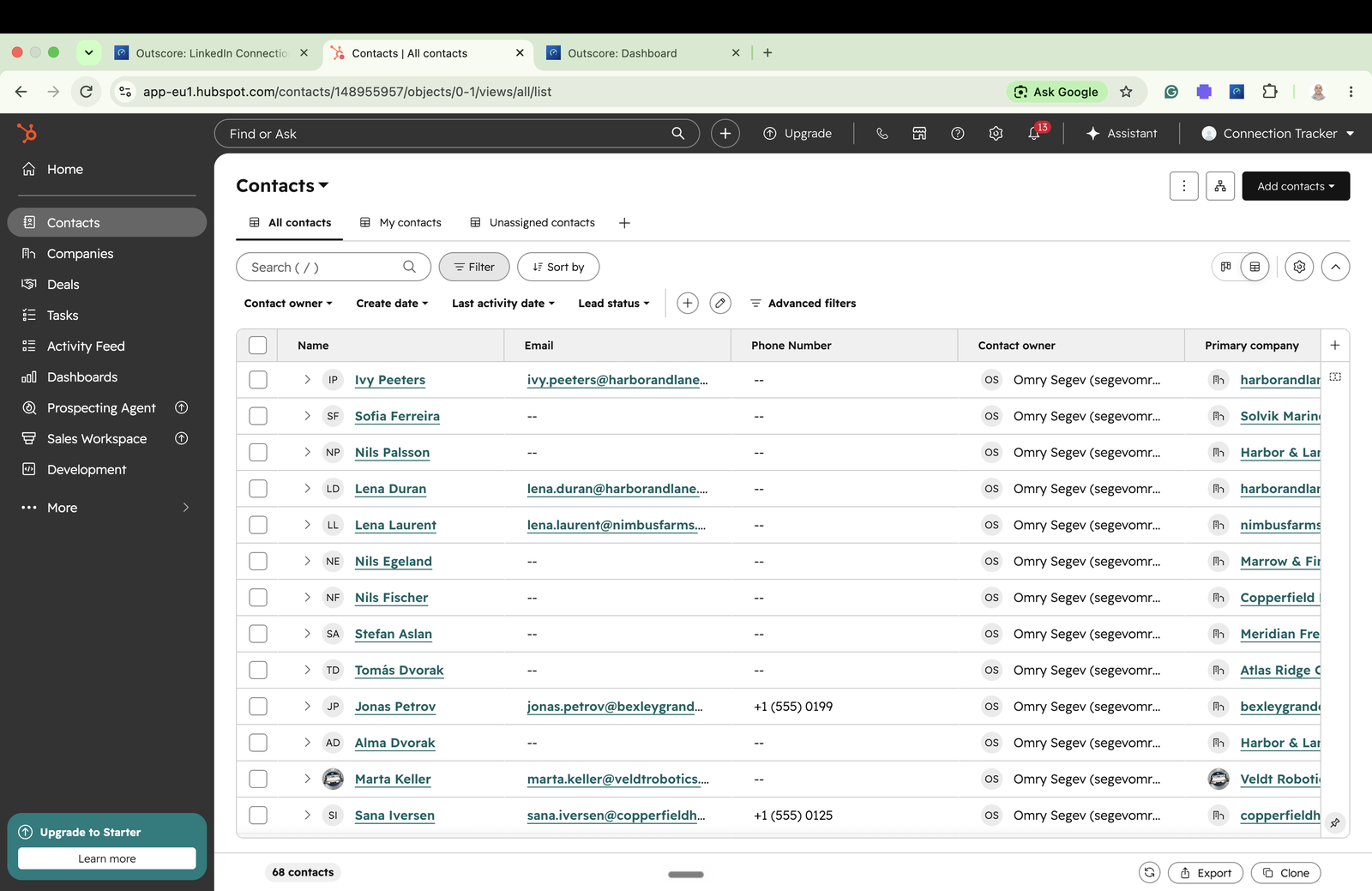
- Connect HubSpot. Click Connect to HubSpot in Outscore. It opens HubSpot's service-key page in your own account, fills in the form, and points at the button to press; you press Create, then hand the key to Outscore. About two minutes, and it works on HubSpot's free tier. Creating a key needs a HubSpot super admin or a user with developer tools access.
- Filter the connections you want. Choose which tracked connections to send, for example only accepted ones, a single company, or a date range.
- Click Push to HubSpot. Outscore creates or updates each person as a contact and reports how many were pushed.
Each contact arrives with first and last name, job title from their LinkedIn headline, company (with an associated company record), LinkedIn profile URL, connection status, connected date, and a timeline note, owned by you. The push runs from your browser directly to HubSpot: Outscore brokers the secure login but your LinkedIn data never passes through its servers.
Frequently asked questions
Does LinkedIn sync connections to HubSpot automatically?
Not on its own. LinkedIn has no native feature that pushes your sent or accepted connection requests into HubSpot as contacts. The Sales Navigator integration logs activity and surfaces LinkedIn info on HubSpot records, but it does not export your connection list. To move the connections themselves you use a CSV import or a tool like Outscore that pushes them as contacts.
What is the best LinkedIn to HubSpot integration?
It depends on the job. For tracking which connection requests get accepted and pushing those people into HubSpot, Outscore (free to track, then $79 a year, $10 a month, or $99 once for the sync). For high-volume profile-to-CRM copying with enrichment credits, Hublead ($32 to $112 per seat per month) or Surfe (from $39 per seat per month). For LinkedIn inbox management, Kondo ($28 to $52 per seat per month). For CRMs other than HubSpot, LinkMatch ships a separate extension per CRM. If you only need a one-time load, HubSpot's own CSV import is free.
How do I import LinkedIn contacts into HubSpot?
Two practical ways. Export your connections to a CSV and use HubSpot's Import tool (Contacts, then Import, then File from computer, mapping the columns). Or connect Outscore to HubSpot and click Push to HubSpot, which creates the contacts for you, deduped by LinkedIn URL, with company and owner set.
Will pushing LinkedIn connections to HubSpot create duplicate contacts?
Not with Outscore. It writes each person's LinkedIn profile URL to HubSpot's native LinkedIn URL property and dedupes on it, so re-pushing updates the existing contact instead of creating a second one, and it is fill-only so it never overwrites data you already have. Duplicate contacts are the single most common complaint about this category, so check for a dedupe key before you pick any tool. A plain CSV import has no such key, so repeated imports can duplicate contacts unless you match on email.
Do I need a paid HubSpot plan to import LinkedIn contacts?
No. Creating and importing contacts and companies works on HubSpot's free CRM, and Outscore is built to work with the free tier. The native LinkedIn Sales Navigator integration is the part that requires paid HubSpot tiers plus a Sales Navigator Advanced seat (around $150 per seat per month), but the CSV and Outscore methods do not.
Is there a cheaper alternative to per-seat LinkedIn-to-HubSpot tools?
Yes. Most LinkedIn-to-HubSpot sync extensions charge $30 to $110 per seat every month. Outscore is free to install and track; pushing to HubSpot is part of Outscore Pro, with no per-seat fee. Pro is $79 a year, $10 a month, or $99 once for life. Your choice at checkout. It does the same core job of pushing LinkedIn connections into HubSpot as contacts, deduped by LinkedIn URL. The difference is that Outscore also tracks your connection acceptance and reply rates for free, which most sync tools do not.
Do LinkedIn-to-HubSpot tools show my connection acceptance rate?
Most do not. They are built to copy profiles and log messages into HubSpot, not to measure outreach. The exception is Hublead: its Business plan ($64 per seat per month billed yearly) shows a per-rep LinkedIn funnel (invitations sent, accepted, messages sent, replies), counted only for contacts already imported into your CRM (checked October 2026). Sales Navigator does not report it at all: LinkedIn's own admin usage reports exclude connection requests entirely. If you want every request counted, how long each stays pending, and who replied, you need a tracker. Outscore counts every invitation you send, free, then lets you push the accepted connections into HubSpot.