
01
You connected with hundreds of people. None are in your CRM.
Every accepted request is a warm contact, and they all live behind LinkedIn’s UI where your CRM cannot see them. The relationship exists; the record does not.
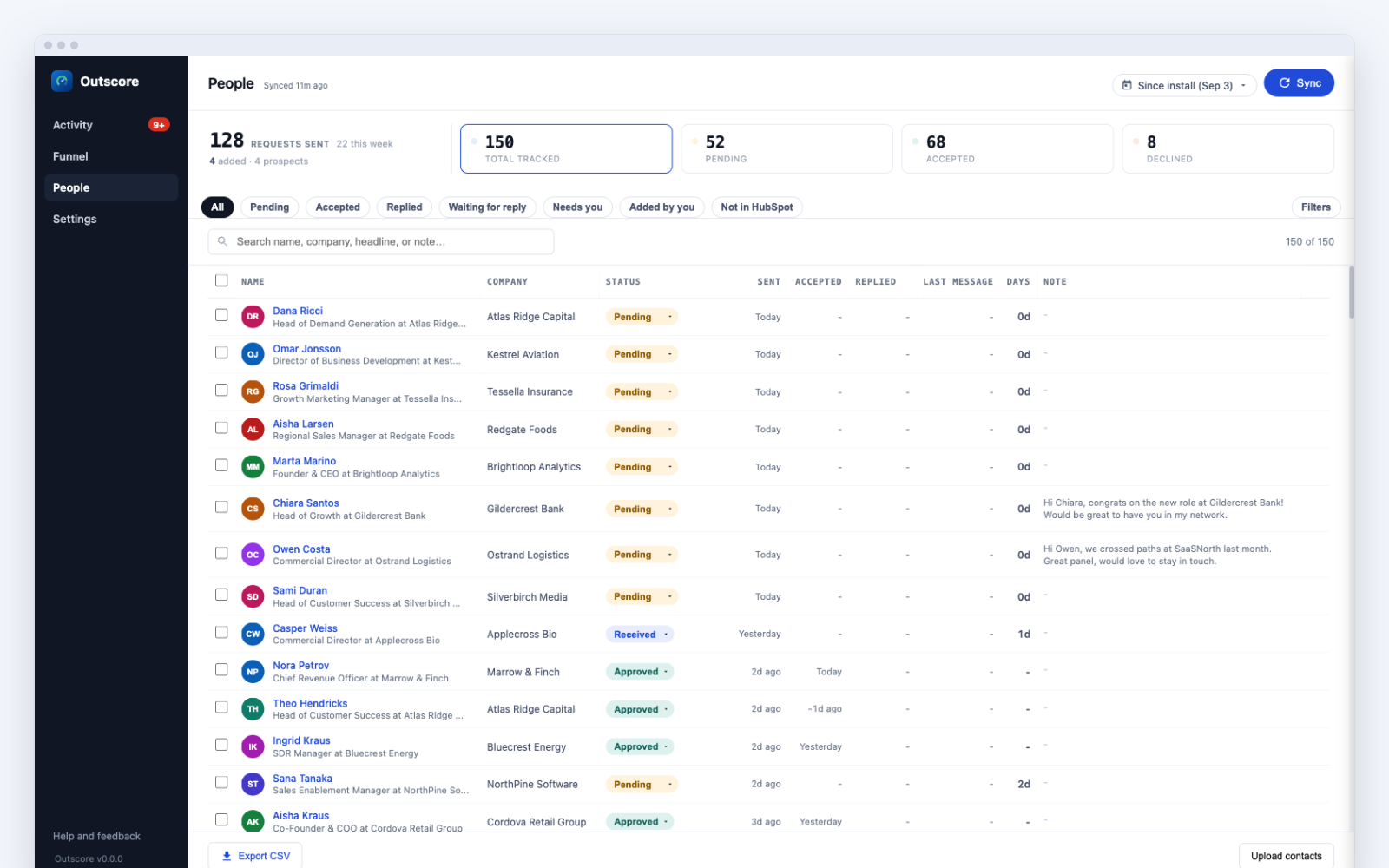
The people you connect with on LinkedIn are your pipeline, and they are stuck on LinkedIn. Outscore tells you which requests got accepted and who replied, then pushes the ones you pick into HubSpot as real contacts, in one click. Deduped, with no copy-paste and nothing to log by hand. Works with HubSpot.
Free to track. One-click CRM sync is part of Pro. Pro is $79 a year, $10 a month, or $99 once for life. Your choice at checkout.
Works with HubSpot free · No per-seat fee · Salesforce and Pipedrive via CSV
Every accepted request is a warm contact, and they all live behind LinkedIn’s UI where your CRM cannot see them. The relationship exists; the record does not.
Name, company, title, profile URL, one contact at a time, tabbing back and forth between LinkedIn and your CRM. It is slow, it is error-prone, and it is the first thing you skip when you get busy.
No record of when you connected, no LinkedIn URL on the contact, no note on how the relationship started. So the next person who opens that record has no idea what already happened.
Managers cannot see the LinkedIn pipeline because it never reaches the CRM, and the fix they try (making reps log it by hand) burns selling time, so it gets skipped. With Outscore each rep pushes the connections they choose, with themselves as owner, and the manager reads the per-rep pipeline in the CRM. Nobody logs anything by hand, and nobody reads anyone’s inbox.
“The LinkedIn-to-HubSpot integration is fast and seamless, connections import automatically with full contact info, no manual data entry required. What used to take hours of copying and pasting into our CRM now happens instantly and accurately.”
Outscore records your connections as you browse LinkedIn, then lets you choose exactly who and what goes into your CRM.
As you use LinkedIn, Outscore records every connection request and whether it was accepted, so you always have a clean, current list to work from.
Filter to the connections you want (by status, company, or date) and choose which fields to send. It is your account, so you control exactly what leaves it.
One click sends them to HubSpot as contacts, deduped, with company, title, LinkedIn URL, and a timeline note. Or export a CSV for any other tool.
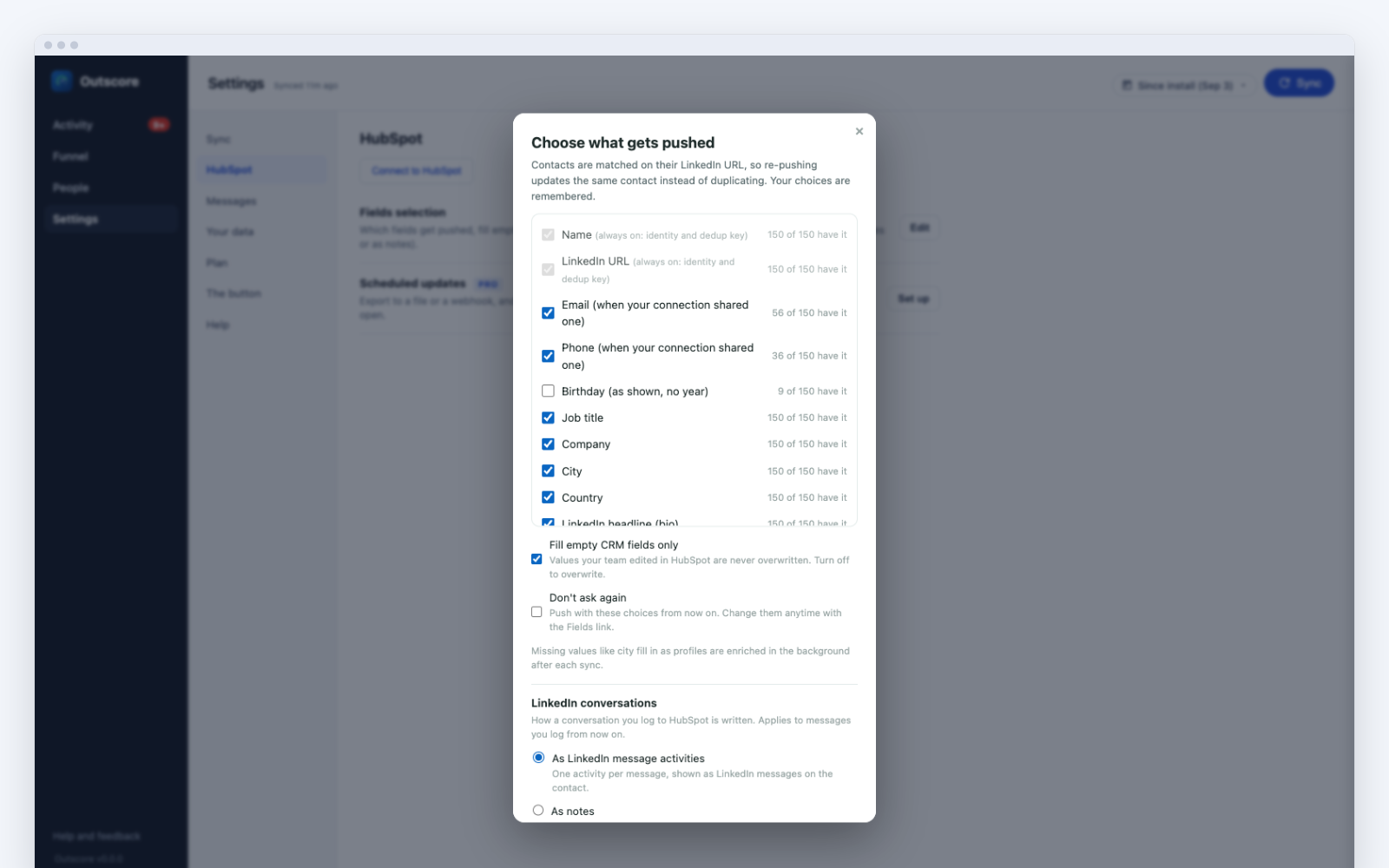
Not just a name. Each connection becomes a complete CRM contact, with the LinkedIn context your record has always been missing.
| From your LinkedIn connection | Into your CRM contact |
|---|---|
| Name | First name and last name |
| Headline | Job title |
| Company | Company field, plus an associated company record |
| Profile URL | LinkedIn URL, used as the dedup key |
| Connection status | A status property (accepted, pending) |
| Connected date | A date property |
| How it started | A timeline note, owned by you |
| The conversation | Push any thread you choose as native message activities or as notes, each message dated when it was sent |
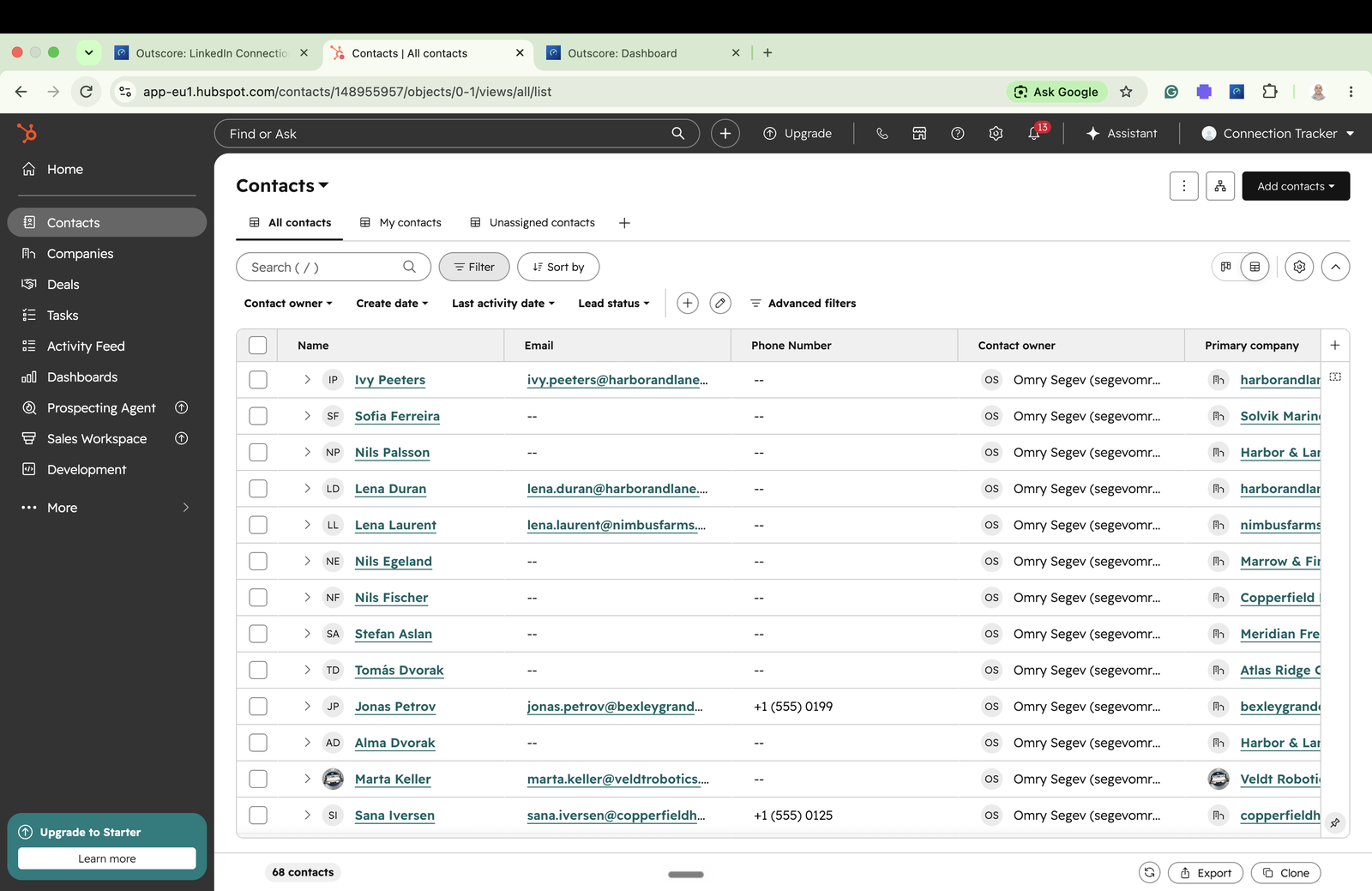
HubSpot has the one-click native sync today, and CSV export covers everything else.
One-click native sync. Pick your connections and push them in as contacts, deduped, with company, title, LinkedIn URL, owner, and a timeline note. See the HubSpot guide.
Outscore’s CSV export drops straight into the Salesforce Data Import Wizard. See the Salesforce guide.
A clean CSV with name, company, status, date sent, and days pending imports into Pipedrive, Attio, Notion, Google Sheets, or any tool that takes a spreadsheet. See the export guide.
The options for getting LinkedIn connections into a CRM, compared honestly.
| Manual copy-paste | Sync extensions(Hublead, Surfe, LinkMatch) | Outscore | |
|---|---|---|---|
| Effort per contact | High, one at a time | One click per profile | Pick many, then one click |
| Tells you what actually worked | No | Mostly no. Hublead Business ($64 a seat) shows rates for contacts in your CRM | Yes: acceptance rate, reply rate, pending aging |
| Your actual connections | Yes, if you find them | Any profile you open | Yes, the ones you tracked |
| Deduped on LinkedIn URL | No | Varies, duplicates are the top complaint | Yes, and fill-only so nothing is overwritten |
| Works on HubSpot’s free tier | Yes | Usually, but the tool itself is paid | Yes |
| Where your data goes | You paste it | Often through their cloud | Browser to your CRM |
| Pricing model | Free (your time) | Roughly $16 to $112 per seat, per month | Free to start · $79/yr, $10/mo, or $99 once |
It’s your personal LinkedIn account, so every decision about your data is yours. Your tracked connections live in your own browser, and Outscore never reports on you to anyone: not your employer, not your manager, nobody. When you sync to a CRM, you choose exactly which people and which fields go, and your contacts travel from your browser to your CRM, not through us. On a team, that’s the whole model: you push what you choose into the company CRM, and the CRM is all anyone else sees.
Track your connections for free, forever. One-click CRM sync is part of Pro. Pro is $79 a year, $10 a month, or $99 once for life. Your choice at checkout. Bought lifetime? You keep it for life.
Install free, upgrade to Pro any time from the extension.
Everything about getting LinkedIn connections into your CRM.
Yes. Outscore Pro pushes the connections you choose straight into HubSpot as contacts, in one click. Each contact arrives with first and last name, job title from their headline, company (with an associated company record), LinkedIn profile URL, connection status, connected date, and a timeline note, owned by you.
It dedupes on the LinkedIn URL, so re-syncing the same person updates the existing contact instead of creating a duplicate.
Today you can get your LinkedIn connections into Salesforce with Outscore's CSV export and the Salesforce Data Import Wizard, which we walk through in the LinkedIn and Salesforce guide.
No. Outscore writes each person's LinkedIn profile URL to a unique property and matches on it, so pushing the same connection again updates the existing contact rather than making a second one.
No. The contacts go directly from your browser to your own CRM account. Outscore brokers the secure CRM login (it holds the app secret and hands your browser short-lived access tokens), but your LinkedIn names, companies, and statuses never touch our servers.
First and last name, job title, company, LinkedIn profile URL, connection status, connected date, a timeline note, and the contact owner. You choose which connections and which fields go, per sync. And as of version 2.12, you can push a whole LinkedIn conversation too: open the thread, click once, and it lands on the contact as native LinkedIn-message activities with the real timestamps, so the CRM finally holds the LinkedIn story, not just the contact.
No. Outscore reads pages you already visit during normal LinkedIn use, and it never sends, messages, or scrapes in bulk. The only thing it does on LinkedIn by itself is withdraw an invitation you choose, when you press Withdraw. It is your own personal LinkedIn account, and you decide what leaves it. The account risk is about the same as using LinkedIn yourself.
Tracking your connections is free, forever. Your funnel and analytics are free too. One-click CRM sync, the full contact list, and CSV export are part of Outscore Pro. Pro is $79 a year, $10 a month, or $99 once for life. Your choice at checkout. Bought lifetime? You keep it for life.
CSV export covers any tool that accepts a spreadsheet, including Pipedrive, Attio, Notion, and Google Sheets. HubSpot has the one-click native sync today.
Install Outscore, and it tracks the connections you make on LinkedIn. When you want them in your CRM, filter to the ones you want and sync: they go straight into HubSpot as contacts, or out as a CSV you import into any other CRM. There is no copy-paste and no scraping, and you choose exactly which people and fields get sent.
Export your tracked connections from Outscore as a CSV and load them with the Salesforce Data Import Wizard as Contacts or Leads. The step-by-step CSV method is in the LinkedIn and Salesforce guide.
For HubSpot, a one-click native sync like Outscore's is the fastest, because it dedupes and keeps the LinkedIn context (profile URL, connected date, a note). For other CRMs, a clean CSV export is the reliable route. Manual copy-paste works but does not scale, and automation tools that scrape profiles carry account risk.
Practical, sourced walkthroughs for connecting LinkedIn to your CRM and getting more of your outreach accepted.
The one-click native sync, the CSV method, and what Sales Navigator does and does not move.
The native Sales Navigator route and its requirements, the free CSV import method, and Zapier.
Surfe, Evaboot, Wiza, and the connection-tracker option, compared by what each is for and what it costs.
Where LinkedIn hides the export, what the file contains, and the difference between connections and contacts.
An honest comparison of automation suites, tracking-only extensions, and the free manual methods.
Seven vendor studies put it between 26% and 51%. What the data says, and how to measure your own.
Where LinkedIn hides your sent invitations, how to withdraw stale ones, and how to keep the history it deletes.
Install Outscore from the Chrome Web Store, free, no credit card. Upgrade to Pro ($79 a year, $10 a month, or $99 once for life) whenever you want one-click CRM sync, CSV export, or scheduled updates.