
Most teams try to do this in one move: export from LinkedIn, import into HubSpot, done. It works for an afternoon. Then new connections arrive that HubSpot never hears about, the conversations stay in LinkedIn, and the import you ran in March is quietly out of date by April. The setup below takes an afternoon too, but it stays current.
What can actually get from LinkedIn into HubSpot?
More than people expect, and less than some vendors claim. Here is the honest map:
| Data | Can it get to HubSpot? | How |
|---|---|---|
| Your existing connections | Yes: name, company, position, connected date, profile URL | LinkedIn's data export plus a HubSpot import (free) |
| Email addresses | Only the ones your connections chose to share | From the export's email column, or from a connection's Contact info at push time |
| Every new connection | Yes, as it happens | A push from your browser, matched on LinkedIn URL |
| Your conversations | Yes, the ones you choose | Logged from the open conversation as LinkedIn-message activities |
| Your whole inbox in the background | No | LinkedIn has no API for personal messages. Anything claiming this is running automation on your account |
The one decision that prevents duplicates
HubSpot deduplicates contacts on email. LinkedIn’s export has an email for only a small share of your connections, because members have to opt in to sharing it. So a plain import creates a fresh contact for every row without an email, and every later import or sync creates another one.
The fix is to give every record a second key that never changes and that every row has: the LinkedIn profile URL. HubSpot ships a contact property for it, LinkedIn URL. Map the export’s URL column to that property, and use tools that search it before they create anything. Outscore does: it looks for the LinkedIn URL first (with and without the trailing slash), then the email, and only creates a contact when neither matches.
Layer 1: your existing network, from LinkedIn’s export
- Request your connections. On LinkedIn: Me, Settings and Privacy, Data privacy, Get a copy of your data. Pick Connections and request the archive. The link usually arrives by email within about ten minutes.
- Clean the file. Open Connections.csv. Delete the notes rows above the header if there are any. Keep the URL column exactly as LinkedIn wrote it.
- Import into HubSpot. Contacts, Import, File from computer, one file, Contacts. HubSpot will also create companies from the Company column if you let it.
- Map the URL to LinkedIn URL. Map First Name, Last Name, Company, Position (to Job title), Email Address (to Email), and URL to HubSpot's LinkedIn URL property. Not to a text field you invent. This is the key everything later relies on.
Optional but worth it: add a column such as Source with the value LinkedIn network and let the import create it as a new property, so you can tell the imported back catalog from the people you actively prospect. The full walkthrough, with the column-by-column detail, is in how to import LinkedIn contacts to HubSpot.
What this layer does not give you is anything after today. The export is a snapshot: no status, no conversations, and no idea who you connect with tomorrow.
Layer 2: every new connection, pushed as it lands
From here on, the people that matter most are the ones you are actively working: requests you sent, people who accepted, inbound invitations from buyers. Outscore tracks those as you use LinkedIn, and pushes the ones you pick into HubSpot.
- Connect HubSpot. Install Outscore, click Connect to HubSpot, and follow the guide that opens on HubSpot's own page to create a key in your account. About two minutes. The key stays in your browser.
- Choose the fields once. Name, LinkedIn URL, job title, company, city, country, email and phone are on by default, and email and phone go only when your connection shared them with you. Lifecycle stage and lead status stay off unless you turn them on.
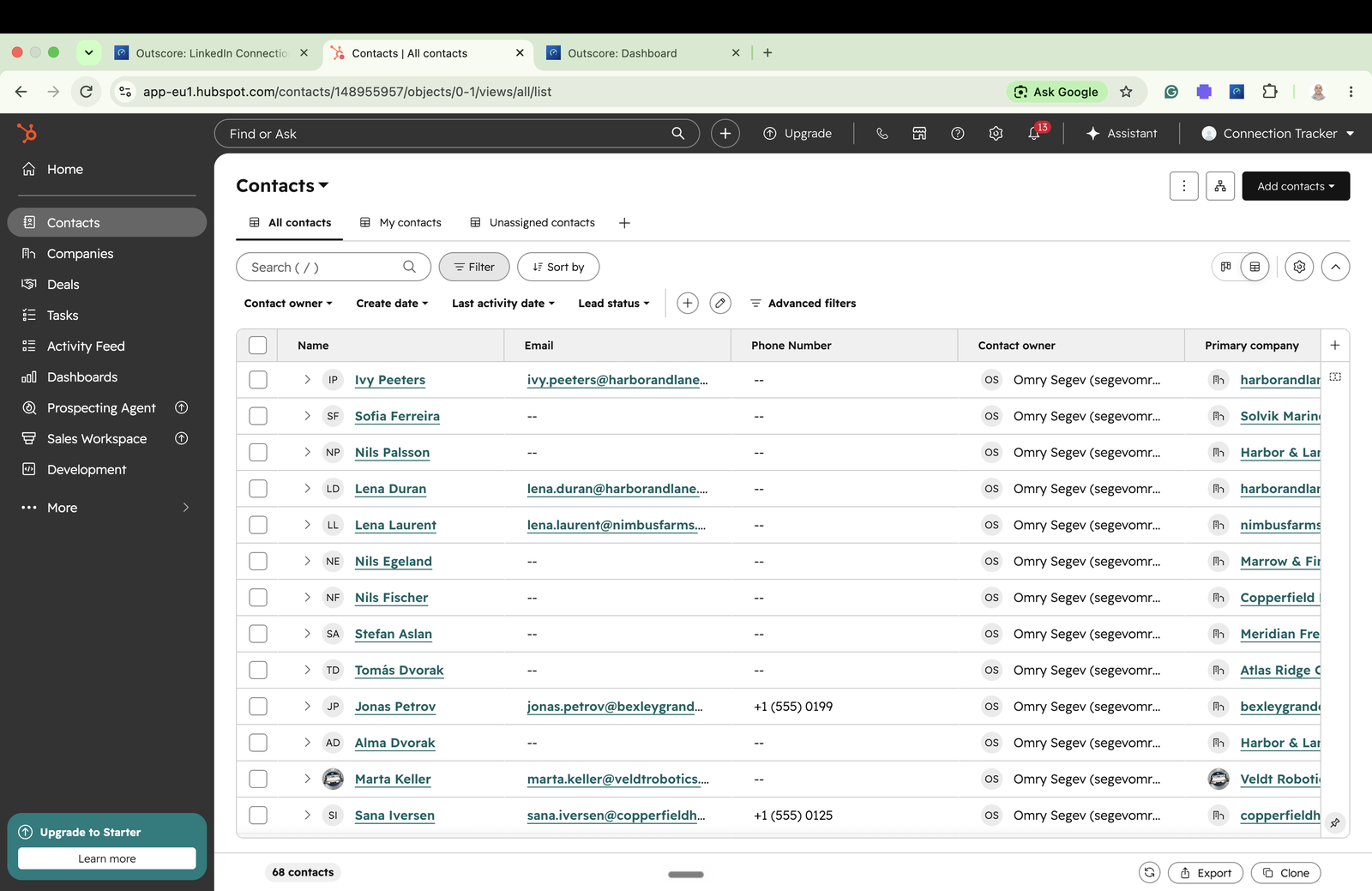
- Push. Push a filtered list from the People page, or one person from the card on their LinkedIn profile. Each contact gets its company record and association, you as the owner, and a timeline note with the connection history.
- Add people from before you installed. Someone you connected with years ago is not in the tracker until you add them. Open their profile or your conversation with them and click Add to Outscore, then push. One person at a time, on purpose: nothing bulk-reads your network.
Because the push searches the LinkedIn URL first, a person you imported in layer 1 is updated, not duplicated, and the update is fill-only: a field someone already filled in HubSpot is never overwritten.
Layer 3: the conversations that matter
This is the part your CRM has never had. LinkedIn offers no API for personal messages, so no integration can pull your inbox in the background. What works is reading the conversation in your own browser, while it is open, and only when you ask.
- Open the conversation. In LinkedIn Messaging or a chat bubble. A bar appears above the message box with the person's status in Outscore. If they are not tracked yet, it offers Add to Outscore first.
- Click Log to HubSpot. The first time, a box explains exactly what is read and where it goes. The thread is saved in Outscore and copied onto the HubSpot contact.
- Read it on the timeline. Each message lands as a LinkedIn-message activity, dated to when it was actually sent, so the history sits in the right order next to emails and calls. Prefer one tidy note per push? Switch it in Fields.
- Pick notes if an AI reads your HubSpot. HubSpot's own MCP server, which AI assistants use to read a HubSpot account, lists notes among the activities it reads and does not list LinkedIn messages. If you want an assistant to use your conversations, log them as notes.
- Update later. When the conversation moves on, the bar shows Update. Logging again adds only the new messages.
Pick the conversations on purpose: the ones with a buyer, a partner, a deal in motion. Your CRM does not need the recruiter who messaged you in 2022. The detail on formats and what HubSpot shows is in how to sync LinkedIn messages to HubSpot. If your network is your business (consulting, advising, coaching), the version written for you, including the AI assistant setup, is LinkedIn to HubSpot for consultants and advisors.
How do I keep HubSpot current without thinking about it?
Push new accepts automatically
In Settings, Scheduled updates, turn on Automatically push to HubSpot. After each sync, connections that were newly accepted are pushed with your chosen fields, matched by LinkedIn URL and fill-only. You stop being the integration. It runs while Chrome is open and catches up on the next sync if the laptop was closed.
Schedule the next touch from the same flow
After you push someone, Outscore offers a follow-up task in HubSpot: In 3 days or Next week. One click creates the task on the contact, assigned to you, so the person who just accepted does not wait for you to remember.
Let the to-do list catch the gaps
The side panel’s Needs you list includes accepted people who are not in HubSpot yet, with a Push button on each. The ones you deliberately keep out, mark Not now and they stop asking.
Doing this for a sales team
The same setup works per rep, and that is the point: each rep installs it, connects the shared HubSpot, and pushes their own connections with themselves as owner. The manager gets per-rep LinkedIn activity in the CRM. Nobody’s inbox is read by anyone else, because a conversation reaches HubSpot only when the rep logs it. More in how to track your sales team’s LinkedIn outreach.
Frequently asked questions
How do I move my whole LinkedIn network into HubSpot?
In two parts. Your existing connections come from LinkedIn's own export (Settings and Privacy, Data privacy, Get a copy of your data, Connections), imported into HubSpot with the URL column mapped to HubSpot's LinkedIn URL property. Every connection after that is pushed as it is made by a tool that matches on the same LinkedIn URL, so the two halves line up instead of duplicating.
Can I get my LinkedIn conversations into HubSpot?
Yes, one conversation at a time, from your own browser. LinkedIn has no API for personal messages, so nothing can pull them in the background. Outscore reads the conversation you have open and logs it on the HubSpot contact as LinkedIn-message activities with their real timestamps (or as one note, if you prefer). Logging the same thread again later adds only the new messages.
Why does my LinkedIn import create duplicate contacts in HubSpot?
HubSpot deduplicates contact imports on email address, and LinkedIn's export has an email for only a small share of connections, because members have to allow it. Rows without an email are created as new contacts every time. The fix is a second key that every row has: the LinkedIn profile URL, mapped to HubSpot's LinkedIn URL property and used by every later push to find the existing record.
Will HubSpot get the email address of my LinkedIn connections?
Only when the connection shared one with you. A 1st-degree connection can show an email on their Contact info, and Outscore can include it in the push. It never buys, guesses or looks up emails from a database. For the rest, the LinkedIn URL is the key and the email stays blank until you get it another way.
Can HubSpot update automatically when I get a new LinkedIn connection?
With Outscore Pro, yes. Turn on Automatically push to HubSpot in Scheduled updates and newly accepted connections are pushed after each sync, matched by LinkedIn URL and written fill-only, so a field you already filled in HubSpot is never overwritten. It runs while Chrome is open and catches up on the next sync if it was closed.
Does this work with the free version of HubSpot?
Yes. The push uses HubSpot's standard contact and company properties, so it works on HubSpot's free CRM. Connecting needs a HubSpot super admin or a user with developer tools access, once, to create the key in your own HubSpot account.