
The use case is simple and it is the one people actually want. Not “write my LinkedIn messages for me”, but “tell me who I forgot”. The prospect who replied while you were in a meeting. The connection who accepted two weeks ago and never heard from you. The thread where you promised a deck and then got busy. Those are sitting in your inbox right now, and LinkedIn will not list them for you. An AI that reviews the conversations every morning will.
Why can’t Grok read my LinkedIn messages directly?
Because there is nothing for it to connect to. Email works with AI assistants because email has open protocols and APIs. LinkedIn messages live behind a private interface, and LinkedIn does not offer third parties an API for your personal conversations. Grok has deep access to X, which xAI owns. LinkedIn is a different company with a closed inbox.
So every working method is a way of moving your own conversation data out of LinkedIn and into the AI. They differ in how fresh the data is and how much of it you do by hand.
| Method | What Grok sees | Freshness | Cost |
|---|---|---|---|
| 1. LinkedIn's data export | Every conversation, full text, sender and date | A snapshot. Stale the next day | Free |
| 2. Weekly pipeline CSV | Per person: status, dates, replied or not, who wrote last, the latest line, your notes | As fresh as your last export | Free to try, then a paid export |
| 3. Webhook to Grok | The same pipeline, sent automatically after each sync | Every morning, hands-free | Export plan plus a few cents of API |
Method 1: the free one-time deep review
LinkedIn will give you every message you have ever sent or received. This is the best input for a one-off audit, the “who did I drop in the last year” review.
- Request your messages. On LinkedIn: Me, Settings and Privacy, Data privacy, Get a copy of your data. Pick Messages (add Connections if you want job titles), and request the archive.
- Download the file. The link arrives by email, usually within minutes to a day, and works for a few days. Inside the zip, the messages file has one row per message with the conversation, sender, date and text.
- Upload it to Grok. Attach the file in a new Grok chat (ChatGPT and Claude accept it the same way) and paste the prompt below.
This file is every LinkedIn conversation I have had. I sell [what you sell] to [who you sell to].

1. List every conversation where the other person sent the last message and I never answered. Newest first, with their name, the date, and their last line.
2. List conversations where I promised something ("I'll send the deck", "let's talk next month") and there is no sign I did it.
3. Rank the 15 warmest prospects: people who asked a question, mentioned a problem I solve, or agreed to a call.
4. Ignore recruiters, spam and newsletters.

Quote the exact lines you base each answer on. Do not guess.
The last line of that prompt matters more than it looks. Ask the model to quote the lines it bases each answer on, and you can check its work in seconds instead of trusting a summary.
The limit of this method is time. The export is a photo, not a feed. It does not know who accepted your request yesterday, it mixes prospects with recruiters and old classmates, and you have to request a fresh one every time you want a fresh answer. Good for a quarterly audit. Useless for “who is waiting on me today”.
Method 2: a weekly review of your pipeline
For a weekly habit you want something narrower than every message you have ever sent: your outreach pipeline, one row per person, with the outcome attached. That is the export Outscore produces. As you use LinkedIn normally it records every connection request you send and receive and what happened to it, and when you have LinkedIn Messaging open it reads the conversation list already on your screen: who wrote last, when, and the latest line. It never opens a conversation by itself.
The CSV that comes out has the columns an AI needs to answer pipeline questions without guessing: Status, Request Sent, Days to Accept, First DM, First Reply, Replied, Last Message At, Last Message Direction, Last Message, plus company, headline, and your own note on each person. Export it on Friday, upload it to Grok, and use this prompt:
This CSV is my LinkedIn outreach pipeline. One row per person. Useful columns: Status, Request Sent, Days to Accept, First DM, First Reply, Replied, Last Message At, Last Message Direction (received means they wrote last), Last Message, Your Note.

Give me, in this order:
1. Replied and waiting on me: Last Message Direction is received. Newest first, one line each with what they said.
2. Accepted in the last 14 days with no First DM: people I connected with and never messaged.
3. Messaged with no reply for 7+ days: suggest one short, specific follow-up for each, in my voice, no more than 2 sentences.
4. One sentence on what my accepts and replies say about my targeting this week.

Do not invent people or messages that are not in the file.
One honest boundary: the CSV holds the latest message per person, not every line of every thread. For the one deal where you need the whole conversation, open the person in the Outscore dashboard, use Copy on their saved conversation, and paste the full thread into Grok with a narrower question (“what did I promise, and what is the next step?”).
Method 3: a morning brief, hands-free
This is the setup people mean when they say they “connected Grok to LinkedIn”. Nothing connects to LinkedIn. Your pipeline leaves your browser after each sync, an automation filters it, Grok reviews it, and the answer is waiting in Slack or your inbox when you sit down.
- Create a webhook in n8n, Make or Zapier. Start a new flow with a webhook trigger (n8n: Webhook node, method POST; Make: Custom webhook; Zapier: Catch Hook). Copy the URL it gives you.
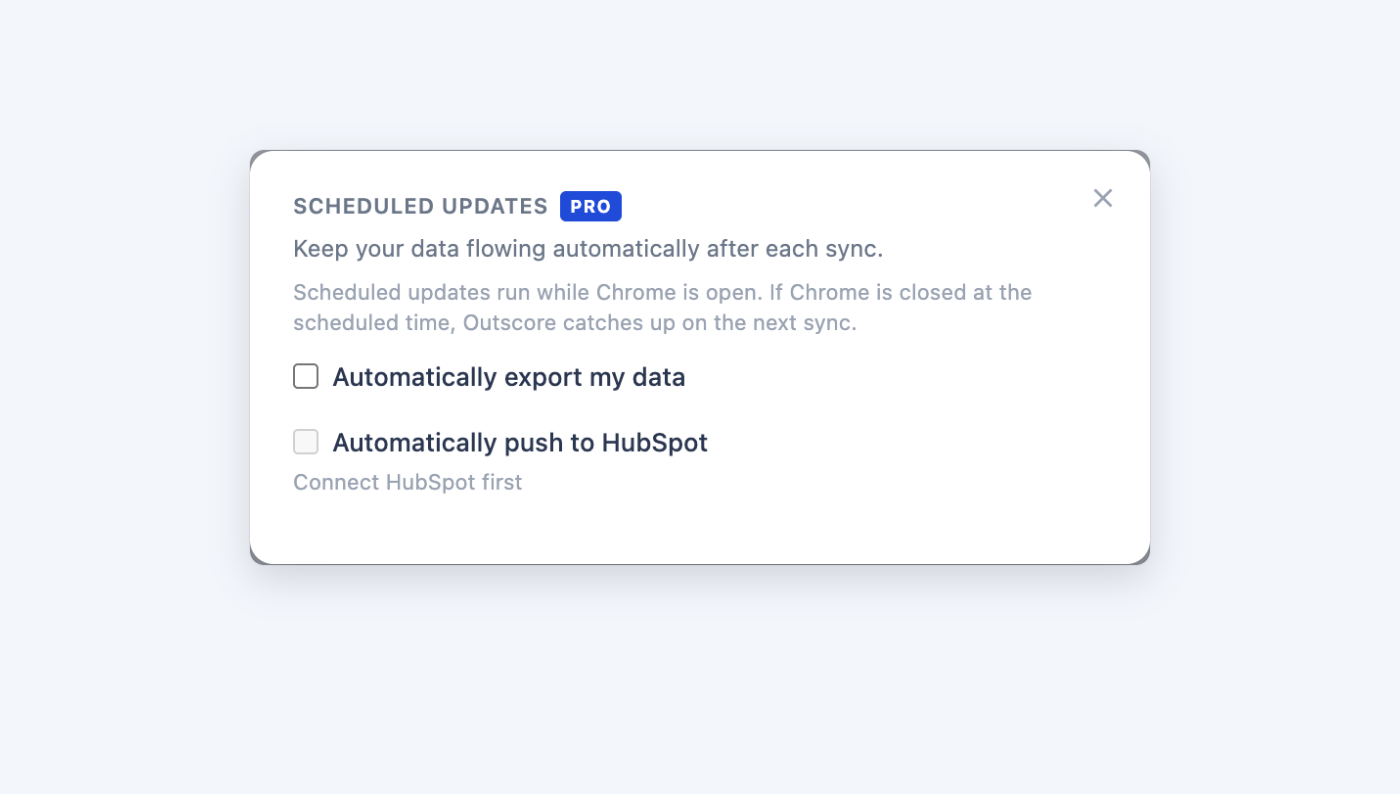
- Point Outscore at it. In the Outscore dashboard: Settings, Scheduled updates, Set up. Turn on Automatically export my data, tick Send to a webhook, pick JSON, paste the URL, add a shared secret, and Save webhook. Press Test to send a sample row. Auto-sync has to be on, since the export runs after each sync.
- Keep only what changed. Add a filter step. Keep rows where Last Message Direction is "received" and Last Message At is in the last two days, plus rows whose Status changed yesterday. That is your morning list, usually a handful of people, not hundreds.
- Send it to Grok. In n8n, add a Basic LLM Chain or AI Agent with the xAI Grok Chat Model attached (an xAI API key from the xAI console). In Make or Zapier, an HTTP request to the xAI API at api.x.ai/v1 works, since it is OpenAI-compatible. Use the weekly prompt above, trimmed to the rows you kept.
- Deliver the brief. Post Grok's answer to a Slack channel only you can see, or email it to yourself. Then open the conversations it names and reply by hand.
Every delivery is a POST with the whole pipeline as JSON, one object per person, using the same column names as the CSV. If you set a secret, it arrives in an X-Outscore-Secret header so your flow can reject anything else.
{
  "exportedAt": "2026-10-14T06:00:00.000Z",
  "rows": [
    {
      "Name": "Dana Levi",
      "Company": "Acme Logistics",
      "Status": "accepted",
      "Request Sent": "2026-09-30",
      "Days to Accept": "2",
      "First DM": "2026-10-02",
      "First Reply": "2026-10-09",
      "Replied": "yes",
      "Last Message At": "2026-10-13",
      "Last Message Direction": "received",
      "Last Message": "Sounds good, can you send pricing?",
      "Your Note": "Met at SaaStr"
    }
  ]
}
Two things to know before you rely on it. Scheduled updates run while Chrome is open and catch up on the next sync if it was closed, so a laptop that stays shut all weekend sends Monday’s brief when you open it. And the data goes from your browser straight to your webhook. It does not pass through Outscore’s servers.
Already have an AI assistant connected to HubSpot?
Then there is a fourth route: put the conversations where your assistant already looks. Log the threads that matter to the HubSpot contact as notes rather than LinkedIn-message activities. HubSpot’s own MCP server, which assistants use to read a HubSpot account, lists notes among the activities it reads and does not list LinkedIn messages. The setup is in LinkedIn to HubSpot for consultants and advisors.
What should I ask Grok about my LinkedIn conversations?
The prompts that pay off are the ones that turn a pile of threads into a short to-do list. These five cover most of it:
| Ask | Why it works |
|---|---|
| Who wrote last and is still waiting on me? | The highest-value list in sales. LinkedIn has no filter for it once a message is read. |
| Who accepted in the last 14 days and never got a first message? | A fresh accept is the warmest moment you will get. It cools in days. |
| Which threads went quiet after I asked for a call? | Finds the stalled deals. Ask for one follow-up line each, not a sequence. |
| What did I promise, and did I do it? | Catches the "I will send it over" lines that never got sent. |
| What do the people who replied have in common? | Turns your replies into targeting: titles, company sizes, industries that answer. |
The one rule: the AI drafts, you send
It is tempting to close the loop and let Grok send the follow-ups. Do not. LinkedIn’s User Agreement prohibits automated activity on the site, and LinkedIn says accounts caught doing it are restricted (LinkedIn Help a1340567). Auto-sending messages is the textbook case. Everything in this guide reads your own data and moves it somewhere you control. Nothing in it clicks, sends or connects on LinkedIn, and that is why it is safe to run every day. More on where that line sits in is LinkedIn automation against the rules.
There is also a quality reason. A reply that a person reads, edits and sends lands better than one a model fired off at 6 a.m. Use the draft as a starting point and make it sound like you.
What about privacy?
You are choosing to send conversation snippets to an AI provider, so make it a deliberate choice. Check your company’s AI policy. Send only the columns the review needs; a filter step can drop email and phone before anything reaches the model. Prefer an API or business plan whose terms say your data is not used for training. And keep the brief somewhere only you can read it.
Frequently asked questions
Can Grok read my LinkedIn messages?
Not by itself. LinkedIn offers no public API for personal conversations, so Grok, ChatGPT, Claude or any other assistant cannot open your LinkedIn inbox. You have to hand it the data: a one-time download from LinkedIn (Settings and Privacy, Data privacy, Get a copy of your data, tick Messages), a pipeline export from a tracking tool, or a webhook that sends your latest pipeline to an automation that calls the Grok API.
How do I get all my LinkedIn conversations into a file?
LinkedIn's own data export includes your messages. Go to Settings and Privacy, then Data privacy, then Get a copy of your data, pick Messages, and request the archive. The download link arrives by email, usually within minutes to a day. The file holds every conversation with sender, date and text, which is the best input for a one-time deep review.
Can Grok reply to my LinkedIn messages automatically?
It should not, and the safe setups never let it. LinkedIn's User Agreement prohibits automated activity on the site, and auto-sending messages is exactly what gets accounts restricted. Use the AI to read, rank and draft. Then you open the conversation and send the reply yourself, at human pace.
Does this work with ChatGPT or Claude instead of Grok?
Yes. The files and prompts are the same. Upload the CSV to ChatGPT or Claude instead, or in an n8n, Make or Zapier flow swap the Grok model step for an OpenAI or Anthropic one. The xAI API is OpenAI-compatible, so most tools that talk to one can talk to the other.
Is it safe to give an AI my LinkedIn conversations?
It is your data and your call, but treat it like any other customer data. Check your company's AI policy first, send only the columns the review needs (a filter step can drop the rest), and prefer an account or API plan whose terms say your data is not used for training. Nothing in this setup sends anything on LinkedIn itself.
What does a morning brief of my LinkedIn conversations cost to run?
The AI part is pennies a day at API prices for a short pipeline summary, and a self-hosted or free-tier n8n, Make or Zapier plan covers one run a day. The pipeline data itself comes from a webhook export, which in Outscore is part of Pro ($10 a month or $49 one-time). The manual methods in this guide cost nothing.