
Some people want a CRM. A lot of people just want a sheet. A founder who reviews outreach on Friday, an agency that reports LinkedIn activity to a client, a manager who wants one tab per rep: a Google Sheet is the tool they already live in. The problem is keeping it true. Below are the three ways to get LinkedIn data into Sheets, from free and static to hands-free.
| Method | What lands in the sheet | Stays current? | Cost |
|---|---|---|---|
| LinkedIn's Connections export | Your connections: name, company, position, connected date, URL | No. One snapshot | Free |
| Pipeline CSV, imported weekly | Every request and outcome, replies, who wrote last, your notes | Until next week | Free to try, then Pro |
| Webhook to an automation flow | The same pipeline, rewritten after each sync | Yes, while Chrome is open | Pro plus a free or cheap automation plan |
The free way: LinkedIn’s export, once
- Request your connections. On LinkedIn: Me, Settings and Privacy, Data privacy, Get a copy of your data. Pick Connections. The email usually arrives within about ten minutes.
- Import into Sheets. Unzip the download. In Google Sheets: File, Import, Upload, choose Connections.csv, and pick Replace current sheet. Delete any notes rows above the header.
You get your network: who you are connected to, where they work, and when you connected. You do not get your outreach. There is no row for a request that is still pending, no record of who declined, and nothing about messages or replies. And it is out of date the day after you import it. The detailed walkthrough is in how to export your LinkedIn connections to CSV.
The pipeline version: one row per person, with the outcome
A tracker records what LinkedIn throws away. Outscore keeps every connection request you send and receive and what happened to it, and when you have LinkedIn Messaging open it reads the conversation list on your screen: who wrote last, when, and the latest line. Its export has these columns, always in this order:
| Columns | What they tell you |
|---|---|
| A-F: Name, Company, Headline, Email, Phone, Profile URL | Who. Email and phone only when your connection shared them with you |
| G-H: Status, Direction | What happened (pending, accepted, declined, withdrawn...) and who invited whom |
| I-L: Request Sent, Status Changed, Days Pending, Days to Accept | When, and how long it took |
| M-N: Connection Note, Your Note | The note on the request, and your own note on the person |
| O-Q: Enriched At, Location, Birthday | Profile details, when read |
| R-W: First DM, First Reply, Replied, Last Message At, Last Message Direction, Last Message | The conversation layer: who wrote last and what they said |
Export it from the People page and import it into Sheets the same way, replacing the data tab each time. That is a fine weekly habit. The next step removes the habit.
How to make the sheet update itself
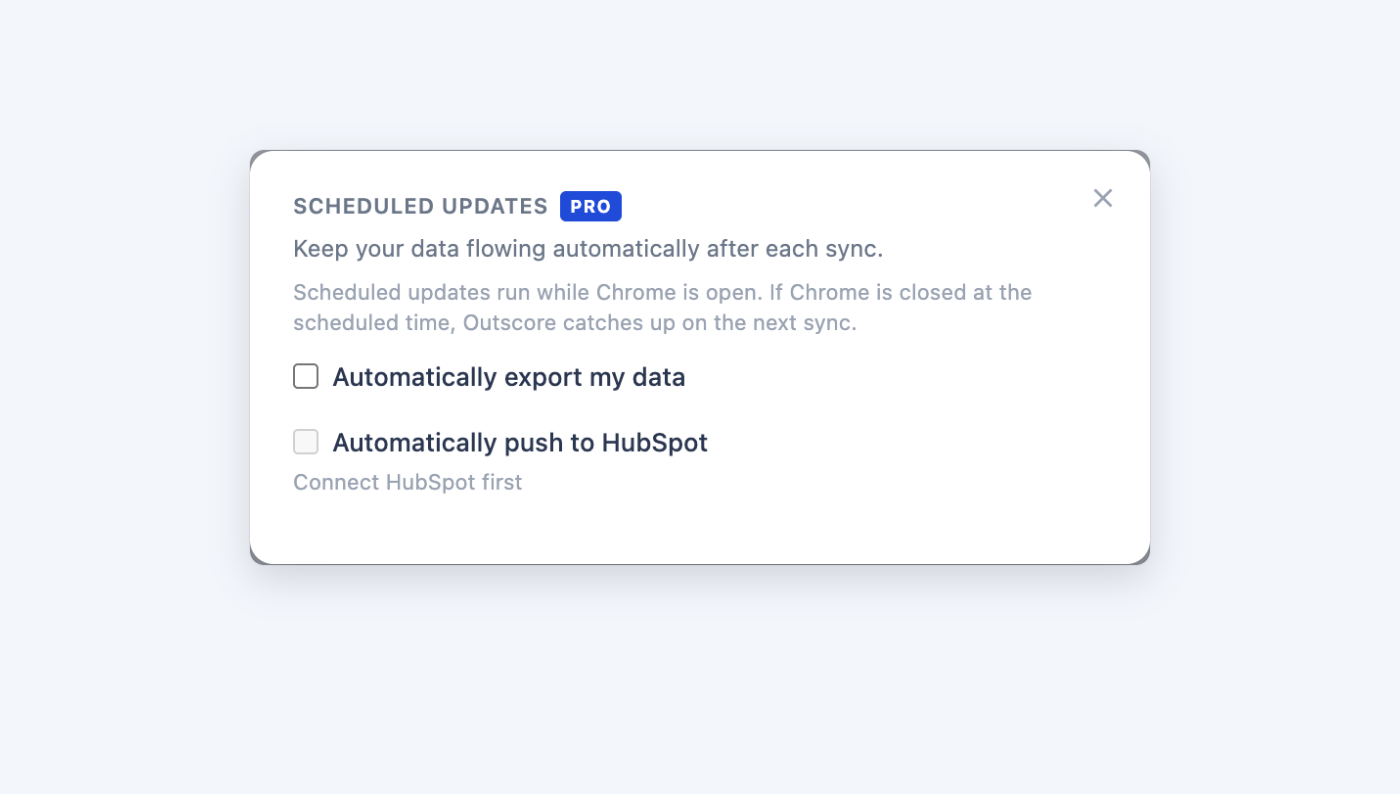
Outscore’s Scheduled updates can post your pipeline to a webhook after each sync, as JSON. Everything else is a small flow in an automation tool. Here it is in n8n, which has the cleanest step for this; Make and Zapier versions follow.
- Create the sheet. A Google Sheet with a tab called Data. Put the export column names in row 1 (or import one CSV export to get them).
- Start the flow with a webhook. In n8n, add a Webhook trigger, method POST. Copy its production URL.
- Split the rows. Add a Split Out step on the field rows. Every delivery is { exportedAt, rows: [...] }, one object per person, keyed by the same column names as the CSV.
- Write to Sheets, matched on Profile URL. Add a Google Sheets step, operation Append or Update Row, your sheet and the Data tab, and set the column to match on to Profile URL. Existing people are updated in place; new people are added.
- Point Outscore at the flow. In the Outscore dashboard: Settings, Scheduled updates, Set up. Turn on Automatically export my data, tick Send to a webhook, pick JSON, paste the URL, optionally add a shared secret, and Save webhook. Press Test: a sample row should appear in your sheet.
From then on, every sync rewrites the rows that changed. Someone accepts on Tuesday afternoon, and Tuesday evening their row says accepted, with the days it took.
The same flow in Make or Zapier
Make: a Custom webhook, then Google Sheets. The simplest reliable version clears the Data tab each run (Clear Values from a Range) and writes the rows array back in one go with Bulk Add Rows, since every delivery is the full pipeline.
Zapier: Webhooks by Zapier, Catch Hook, then a Google Sheets lookup on Profile URL that updates the row if it exists and creates it if not. Whichever you use, do not plain-append: every delivery carries everyone, so appending writes your whole pipeline again on every sync.
The report tab worth building
Keep the Data tab raw and build a second tab that reads from it. Put the labels in column A and the formulas in column B. If your Data tab keeps the export’s column order, they work as they are:
Requests sent           =COUNTIF(Data!H:H,"outbound")
Accepted                =COUNTIFS(Data!H:H,"outbound",Data!G:G,"accepted")
Acceptance rate         =B2/B1
Still pending           =COUNTIF(Data!G:G,"pending")
People who replied      =COUNTIF(Data!T:T,"yes")
Waiting on you          =COUNTIF(Data!V:V,"received")
Avg days to accept      =AVERAGEIF(Data!L:L,">=0")
Then add a pivot table on the Data tab: Company as rows, Status as columns, count of Name as values. Sort by requests with zero accepts and you can see which accounts never accept you (more on reading that in is a company ignoring your requests on purpose). Sort by accepted and you see where your next invites should go.
One sheet for a whole team
For a manager, the same pattern makes a team sheet with no seat licenses and no CRM project. Give each rep their own webhook URL (or add a Rep column in the flow from a URL parameter) and write everything into one Data tab. One rule: leave out Last Message and Connection Note for the team version. A manager needs counts, rates and dates per rep. Nobody needs to read a rep’s conversations to coach them. The wider playbook is in how to track your sales team’s LinkedIn outreach.
The honest limits
| Question | Answer |
|---|---|
| Does it run when my laptop is closed? | No. It runs after each sync while Chrome is open and catches up on the next one. |
| Does every person end up in the sheet? | Everyone in your Outscore pipeline: requests you sent and received, and anyone you added by hand. |
| Does my data pass through Outscore? | No. It goes from your browser straight to your webhook. |
| Does anything happen on LinkedIn? | No. Nothing is sent, clicked or posted. It only moves your own data. |
Frequently asked questions
Can I connect LinkedIn to Google Sheets?
Not directly. LinkedIn has no Google Sheets integration and no public API for your connection requests or messages. You can import LinkedIn's own Connections.csv export into a sheet for free, once. For a sheet that stays current, a tracking tool has to send your data to Sheets: Outscore can post your pipeline to a webhook after each sync, and an n8n, Make or Zapier flow writes it into the sheet.
How do I export my LinkedIn connections to Google Sheets?
On LinkedIn: Me, Settings and Privacy, Data privacy, Get a copy of your data, pick Connections, and request the archive. Unzip it, then in Google Sheets use File, Import, Upload and choose Connections.csv. You get name, company, position, connected date and profile URL, with an email only for the few connections who allow it.
Can Google Sheets update automatically with my LinkedIn activity?
Yes, with a webhook in the middle. Outscore's Scheduled updates (Pro) post your whole pipeline as JSON after each sync. An automation flow catches it and replaces or upserts the rows in your sheet, matched on the Profile URL column, so the sheet always shows the latest status, reply and date for every person.
Will the sheet fill up with duplicate rows?
Only if the flow appends. Every delivery carries your full pipeline, not just the changes, so a plain append writes a fresh copy each sync. Use an append-or-update step matched on Profile URL, or clear the data tab and write all rows each time. Both keep exactly one row per person.
Does the automatic export run when my computer is off?
No. It runs after each background sync while Chrome is open. If Chrome was closed, it catches up on the next sync, so a sheet you check on Monday morning is current once you have opened your laptop.
Can a sales manager put the whole team into one sheet?
Yes. Give each rep's export its own webhook (or add a Rep column in the flow) and write everything into one sheet. Leave out the Last Message and Connection Note columns for a team sheet: the manager needs counts and dates, not anyone's conversations.