
On your phone? Outscore is a Chrome extension, so it runs on a computer. Get the link by email and open it there.
The expensive mistakes are small ones. You write a warm note to someone a colleague has been working for a month. You add a contact who was already there under a different email, and now there are two. You open with a cold pitch on a person whose stage says Customer. All three happen because the answer lives in HubSpot and the question comes up on LinkedIn. This guide covers the honest manual check, then the way to put the answer on the page.
Key facts, from HubSpot’s own documentation
| Question | Answer |
|---|---|
| Does HubSpot show anything on a LinkedIn profile by default? | No. HubSpot has no card or sidebar on LinkedIn pages. The LinkedIn integration HubSpot documents shows LinkedIn data on a HubSpot record, not HubSpot data on LinkedIn. (HubSpot Knowledge Base) |
| Who can use HubSpot's own LinkedIn integration? | Users with an assigned Sales Hub Professional or Enterprise seat and a LinkedIn Sales Navigator Advanced Plus account. (HubSpot Knowledge Base, checked 1 November 2026) |
| Where does the HubSpot Sales Chrome extension work? | It is built for Gmail: tracking and logging email, and viewing records from your inbox. Its sidebar can be enabled on other websites, where it matches the site's domain to a company record. The documentation does not mention LinkedIn. (HubSpot Knowledge Base) |
| How does HubSpot decide two contacts are the same person? | "HubSpot automatically deduplicates contacts using email addresses." A contact without an email, or with a different one, is a new record. (HubSpot Knowledge Base) |
| What does HubSpot do with a LinkedIn profile URL? | Stores it in the LinkedIn URL contact property, which you can filter on. The matching HubSpot does by itself uses email, not this property, so a tool has to search it before creating anything. (HubSpot Knowledge Base) |
Sources: HubSpot Knowledge Base, Connect HubSpot and LinkedIn Sales Navigator, HubSpot Knowledge Base, Use the HubSpot Sales Chrome extension across the web, and HubSpot Knowledge Base, Deduplicate records in HubSpot.
Why doesn’t LinkedIn show whether someone is in HubSpot?
Because neither side is built to. LinkedIn is a closed page with no slot for your CRM. HubSpot’s integrations point the other way: the Sales Navigator card sits on a HubSpot contact and shows that person’s LinkedIn title, company and location, which helps when you start from HubSpot, and it needs a Sales Hub Professional or Enterprise seat and a Sales Navigator Advanced Plus account per user. HubSpot’s Sales Chrome extension is built for your inbox. Its sidebar can be switched on for other websites, where it looks for a company whose domain matches the site you are on. On linkedin.com that is not the person whose profile you are reading.
So when you start on LinkedIn, which is where consultants, founders and reps spend their prospecting hours, the question “is this person already in our HubSpot?” has no answer on the page. You either look it up by hand or you bring the answer to the page.
How do you check by hand?
Search HubSpot by name, then confirm it is the same person. It takes about half a minute when the name is unusual and much longer when it is not.
- Search Contacts by name. In HubSpot, open Contacts and type the name in the search box. Open each result and compare company and title with the LinkedIn profile. Two people called Daniel Cohen at two companies is normal; two at the same company happens too.
- Try the email if you have it. A 1st-degree connection may show an email on their Contact info on LinkedIn. Searching HubSpot by that email is reliable, because email is what HubSpot deduplicates on. Most connections do not share one.
- Filter on the LinkedIn URL property. If your team fills the LinkedIn URL property when it adds contacts, filter the contacts list on it with the profile URL. If the property was never filled, this finds nothing, even when the person is there.
- Read the record before you write. Owner, lifecycle stage, lead status and the last activity on the timeline. This is the part people skip when the lookup already cost them a minute.
The method works. The problem is that it is a decision every time: is this person worth 30 seconds of checking? For most profiles the answer is no, so the check does not happen, and the duplicate or the awkward double-contact happens instead.
How to see the HubSpot record on every LinkedIn profile
Outscore is a Chrome extension that tracks your LinkedIn activity and shows your HubSpot on every profile. It runs in your own browser with a key you create in your own HubSpot account, so what it shows is what your HubSpot login can see. Here is the setup and what you get.
- Connect HubSpot once. Install Outscore, open LinkedIn, and click Connect to HubSpot in the dashboard menu. A guide opens on HubSpot's own page and fills in the key name and the scopes; you click Create and Show. About two minutes. The key stays in your browser and never reaches Outscore's server. You need to be a super admin or have developer tools access in HubSpot to create it. If you are not, press Ask my admin, or connect read only with your own HubSpot personal key.
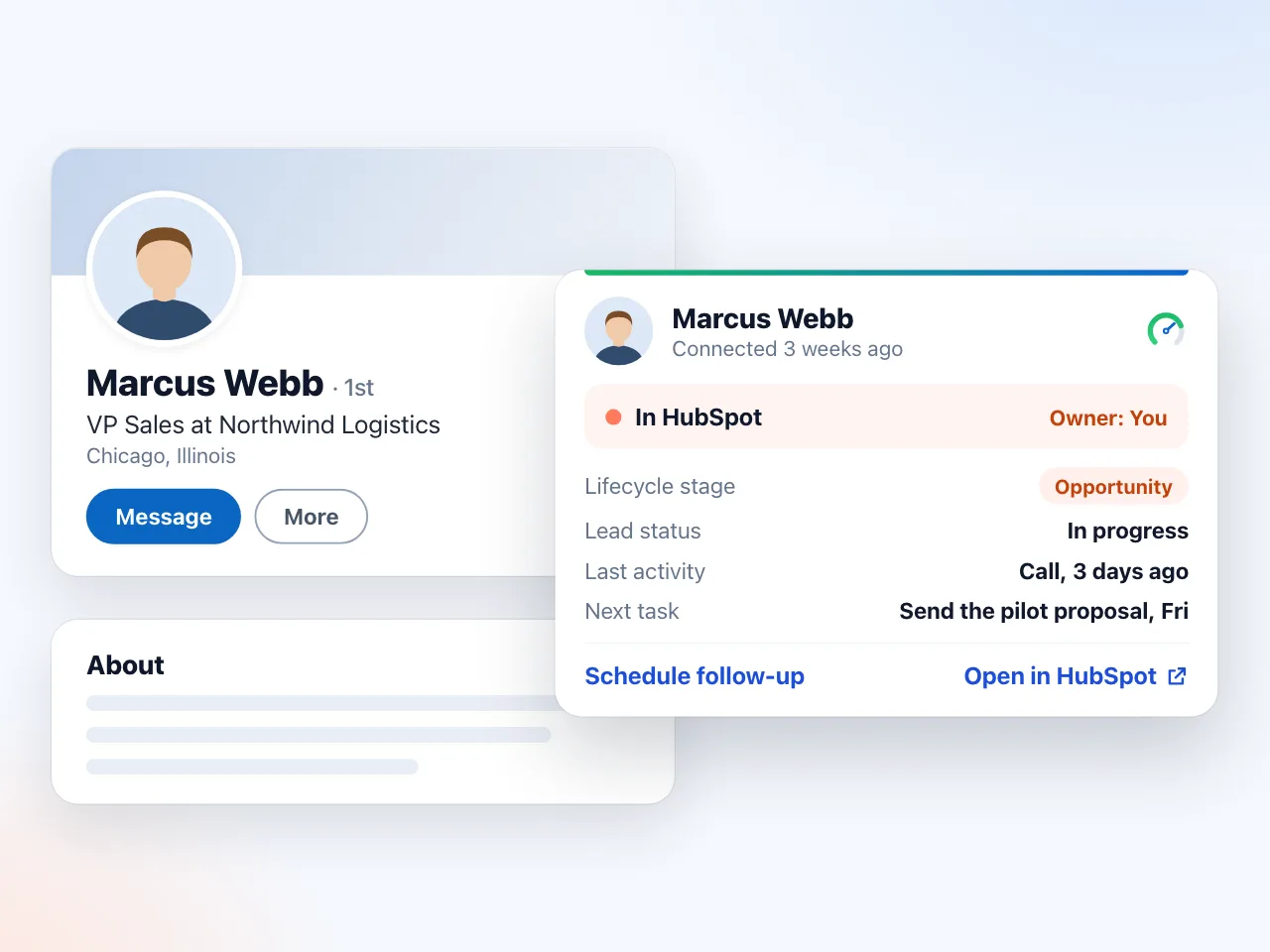
- Open any profile. The Outscore card on the profile shows one of three answers. In HubSpot, followed by the owner and the lifecycle stage. Not in HubSpot, with Check email and Check again. Or Maybe in HubSpot, when one to three records share the name.
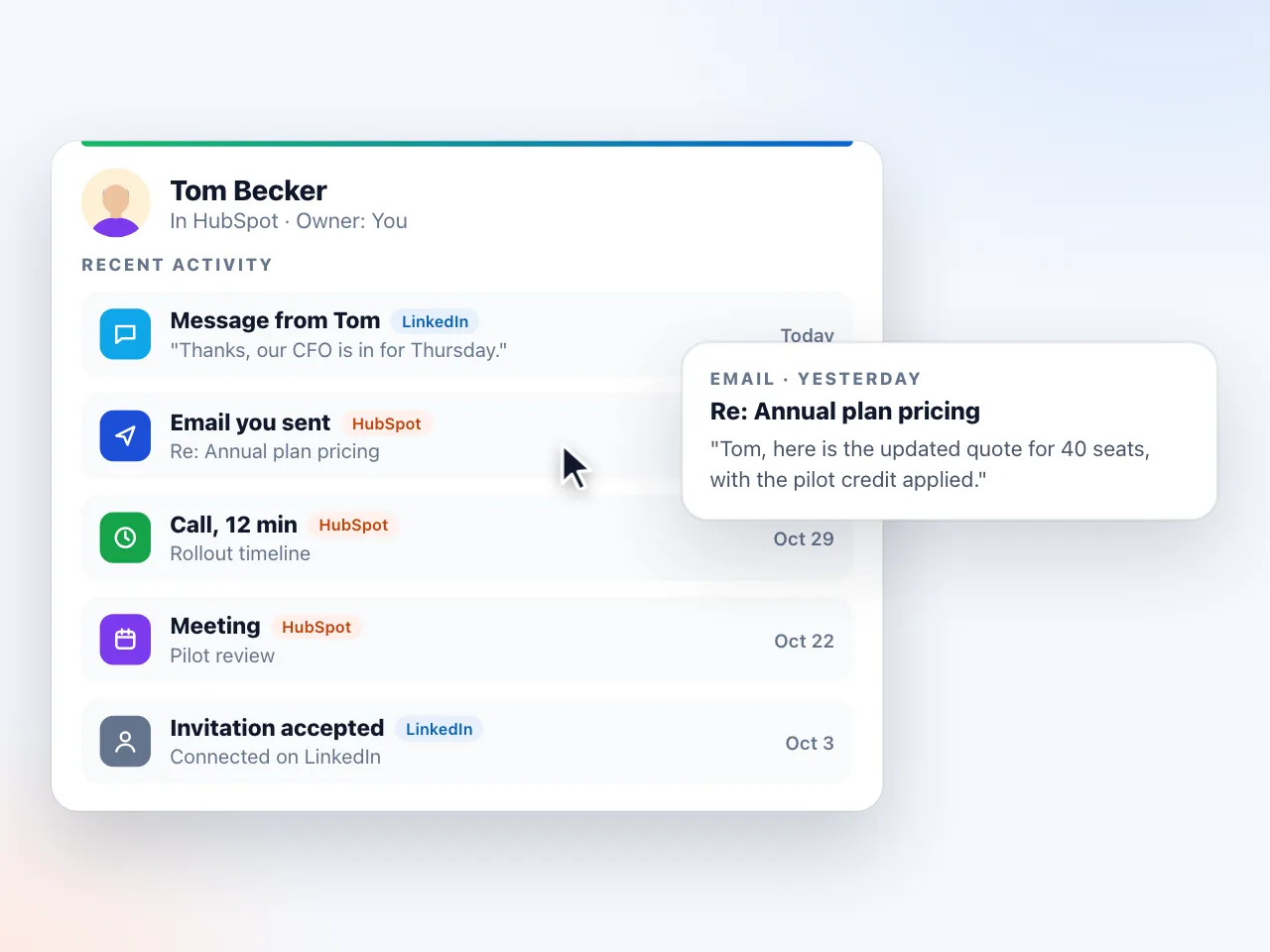
- Click Details. Under In HubSpot, Details opens the lead status and Edit. The panel icon opens the side panel with open tasks, Recent activity as a timeline, and the company with its deals, read only. Open in HubSpot, in the card menu, jumps to the record in a new tab when you need the full picture.
- Look further when the name differs. Not in HubSpot can be wrong when the person is filed under a maiden name, a nickname or a different company. Another name or email? Find in HubSpot searches by name, email or company and shows up to 5 records. For privacy only the domain of each email is shown.
- Add the ones who are missing. Under Not in HubSpot the same card offers Push to HubSpot, so the check and the fix sit together. The push writes name, LinkedIn URL, title, company and the rest of your chosen fields, with you as owner, and never overwrites a field you already filled in HubSpot.
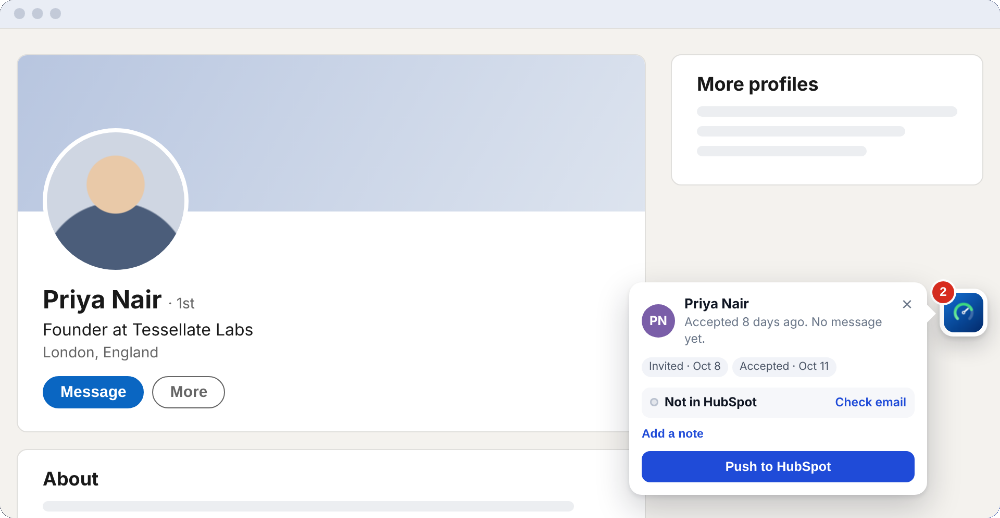
The same box lives in the side panel, with the full detail, and the HubSpot check is on by default. If you want LinkedIn profiles left alone for a while, the switch is in Settings, HubSpot.
What if the name matches but it might be someone else?
Outscore never decides that on its own. A name alone is not proof, so a name-only match shows as Maybe in HubSpot and asks: Same person? Yes, No, or Search HubSpot. With several candidates it lists them and you pick This one or None of them. In the side panel the buttons read Yes, link them and No.
Behind the answer is a matching order that runs before any name is considered. First, an email Outscore already has for the person, for example one they shared on LinkedIn. Second, the LinkedIn URL, sent in 12 spellings so a record saved as www, without www, with or without a trailing slash, still matches. Third, a choice you saved earlier. Only then the name, and the name only ever produces a question.
When you answer Yes, Outscore fills the record’s LinkedIn URL if it is empty and touches nothing else. From then on that profile is a plain In HubSpot, for you and for anyone else on the team who opens it with Outscore. When you answer No, the record is left alone and your answer is remembered. If you push that person later, the push creates a new contact rather than silently attaching to the namesake.
How to check a whole list at once
Opening profiles one by one is fine for today’s prospects. For the 400 connections you accepted over the last two years, use the People page in the Outscore dashboard, which has a HubSpot column.
- Press Check who's in HubSpot. It is in the footer of the People page. One press checks up to 500 people, in groups of 8, using the same matching order as the profile card. The answers are free.
- Read the column. Each row shows Pushed (with the date and a link to the record), In HubSpot, Maybe (with the Same person? question), Not in HubSpot (with Push and a recheck), or Not checked. The column sorts, so the gaps float to the top.
- Act on the bar. Above the list a bar reads: N accepted connections are not in HubSpot yet. You pick who goes in. Its buttons are Check them, Show them, and Push all N to HubSpot. Show them filters the list so you can push the right ones, one row at a time or on a selection.
- Settle the Maybes as they come. When a push from the People page hits a name-only match, a review box opens so you can answer Same person? on the spot, or press Decide later and keep going. Nothing is linked on a name alone.
A worked example
Say a fractional CMO has 380 accepted connections in Outscore and a HubSpot with 1,200 contacts built from email. One press of Check who’s in HubSpot might come back with 210 In HubSpot, 15 Maybe and 155 Not in HubSpot. That is an example, not a benchmark: the split depends entirely on how the two lists were built. The useful part is what follows. The 210 need no action. The 15 take a minute each to settle. The 155 are the decision: push the clients, partners and live prospects, and leave the rest out of the CRM on purpose.
What is free and what is Pro?
The yes or no is free for everyone, on every profile and in the People column, with no limit on how many people you check. So are Open in HubSpot, the Same person? question and Find in HubSpot. The detail under the line, owner, stage, lead status, your next step and Recent activity, needs Pro, and a new install has it for 14 days; after the trial the card reads In HubSpot, and All properties shows the record read only.
Pushing is a separate allowance, not part of the trial: your first 10 people in HubSpot are free on every install (a push, a logged conversation, a task or a company each use one person’s slot, and the same person again is free), plus 3 more people whose conversations you can log as a try-out. Beyond that, Pro is $10 a month, billed yearly, or $15 month to month, your choice at checkout. It works with HubSpot’s free CRM. No automation. It never sends invitations or messages. The only thing it does on LinkedIn for you is withdraw an invitation you pick, when you press Withdraw.
Once the answer is on the page, the next steps are on it too: log a conversation on the record, as in how to sync LinkedIn messages to HubSpot, or set a follow-up task without leaving the profile, as in LinkedIn follow-ups as HubSpot tasks.
Frequently asked questions
Is there a way to see if a LinkedIn contact is in HubSpot without leaving LinkedIn?
Yes, with a browser extension that reads the profile you have open and asks your HubSpot account. LinkedIn itself shows nothing from HubSpot. Outscore puts a line on every profile: In HubSpot with the owner and stage, Not in HubSpot, or Maybe in HubSpot when only the name matches. Whether someone is in HubSpot, the Open in HubSpot link and the Find in HubSpot search are free; owner, stage, lead status, your next step and Recent activity need Pro or the 14-day trial.
Does HubSpot have a LinkedIn sidebar?
Not for LinkedIn profiles. HubSpot's Sales Chrome extension is built for Gmail. Its sidebar can be turned on for other websites, where it matches the site's domain to a company record, and HubSpot's documentation does not describe matching a LinkedIn profile to a contact. HubSpot's own LinkedIn integration goes the other way: it shows LinkedIn data on a HubSpot record, and it needs a Sales Hub Professional or Enterprise seat plus Sales Navigator Advanced Plus.
How does Outscore know a LinkedIn profile matches a HubSpot contact?
In this order: an email Outscore already has for the person, then the LinkedIn URL, sent in 12 spellings so a record saved with or without a trailing slash or www still matches, then a choice you saved earlier. A name match on its own is never treated as the same person. Outscore shows Maybe in HubSpot and asks you, and only links the record when you say Yes.
What happens when I click Yes on a Maybe in HubSpot match?
Outscore fills the record's LinkedIn URL property if it is empty, so the next time you open that profile it is a plain In HubSpot. It writes nothing else. If you click No, the record is left alone and Outscore remembers your answer.
Can I check my whole LinkedIn network against HubSpot at once?
Your accepted connections, yes. On the People page, press Check who's in HubSpot and Outscore checks up to 500 people per press, in small groups. The HubSpot column then shows Pushed, In HubSpot, Maybe, Not in HubSpot or Not checked for each row, and you can sort on it. The answers are free. Pushing the people who are missing uses your HubSpot allowance: the first 10 people are free, then Pro.
Does this work with the free version of HubSpot?
Yes. It reads standard contact properties and works on HubSpot's free CRM. Connecting needs a HubSpot super admin or a user with developer tools access, once, to create a service key in your own account. The key stays in your browser. Not an admin? Press Ask my admin to have yours set it up, or connect read only with your own HubSpot personal key, which is enough to see who is in HubSpot.