
On your phone? Outscore is a Chrome extension, so it runs on a computer. Get the link by email and open it there.
If you run a consultancy, an advisory practice or an early company, your relationships move on LinkedIn and your day runs from HubSpot’s task queue. The gap between the two is where follow-ups die. Someone accepts on Tuesday, you mean to write on Thursday, and by the next week the accept is three screens down in your notifications. This guide covers the honest manual route first, then the one-click route, then the to-do list that catches what you did not schedule.
Key facts about LinkedIn follow-ups and HubSpot tasks
| Question | Answer |
|---|---|
| Can LinkedIn remind me to follow up with a connection? | No. There is no reminder on an invitation, a connection or a message in LinkedIn itself. |
| How do I create a task on a contact in HubSpot by hand? | Open the contact record, click Task in the left panel, fill in the title, type (Call, Email or To-do), priority, assignee and due date, then click Create. (HubSpot Knowledge Base) |
| What does Outscore create? | A HubSpot task "Follow up with <Name> (LinkedIn)", status Not started, assigned to you, on the contact, due 9am local time, in 3 days or next week. |
| Can I change the task from LinkedIn? | Yes, since Outscore 3.2.5: click your task, change its words, due day or priority, and Save. Only what you changed is written; a new day keeps its time and moves its reminder. |
| Can an AI assistant that reads my HubSpot see these tasks? | Yes. HubSpot's own MCP server lists tasks among the activities it reads, next to notes, calls, emails and meetings (checked 1 November 2026). (HubSpot developer docs) |
| What does it cost? | Your first 10 people in HubSpot are free on every install; a task uses one slot, and the same person again is free. Then Pro: $10 a month, billed yearly, or $15 month to month. |
Sources: HubSpot Knowledge Base, Create tasks and HubSpot’s remote MCP server. Last verified 1 November 2026.
Why do LinkedIn follow-ups get lost?
Because the moment that matters happens on LinkedIn and the system that remembers things is somewhere else. An accept is a notification, not a to-do. A reply you have read looks exactly like a reply you have answered. LinkedIn gives you no “remind me”, no due date, no queue. The follow-up lives in your head, and your head is busy.
HubSpot has the opposite problem. It is very good at reminding you, but it only knows about the people and events you put in it. If the accept never reaches HubSpot, HubSpot cannot nag you about it. So the real job is moving one small fact, “this person is worth a message on Thursday”, from the LinkedIn tab into the HubSpot task queue, with as little friction as possible, because friction is exactly what you skip at 5pm.
How to create a follow-up task in HubSpot by hand
No tool needed, and it works on HubSpot’s free CRM. The steps, from HubSpot’s own documentation:
- Open the contact in HubSpot. Contacts, then the person's name. If they are not in HubSpot yet, create the contact first and paste their LinkedIn URL into the LinkedIn URL property so you can find them again.
- Click Task in the left panel. The task editor opens on the record, already associated with the contact.
- Fill in the form. A title (write something you will understand on Thursday, such as "Follow up on LinkedIn, she asked about the pricing workshop"), the type (Call, Email or To-do), priority, who it is assigned to, and the due date and time.
- Click Create. The task appears in your task queue on the due day and on the contact timeline immediately.
The HubSpot mobile app can create tasks too, which is handy when the accept arrives on your phone. The cost of the manual route is not any single task. It is the tab switch, the search for the contact, and the form, repeated for every accept and every reply. Most people do it for the first three and stop.
What about doing it inside LinkedIn?
There is nothing to do it with. LinkedIn has no reminders on connections or messages, so the choice is a sticky note, a calendar event, or a task in the CRM you already live in.
How to schedule the follow-up from the LinkedIn profile
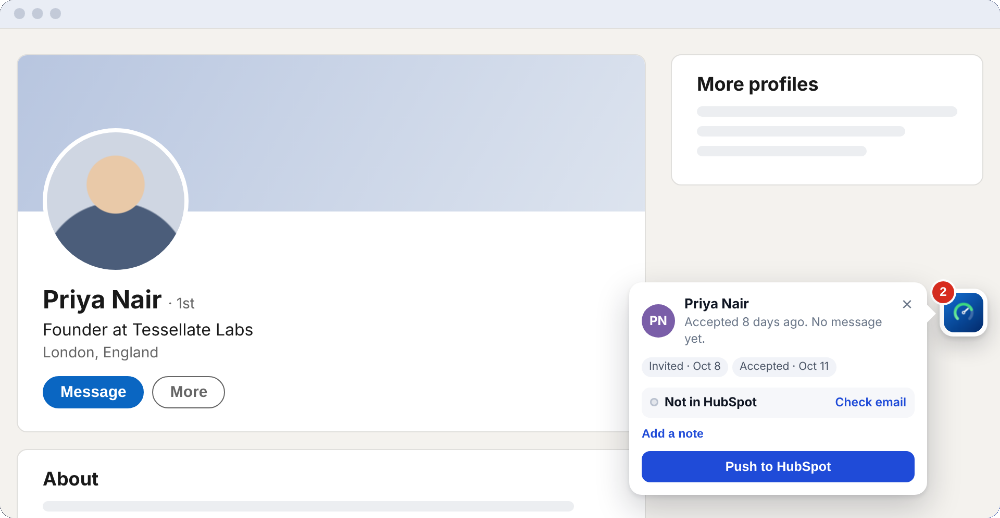
Outscore puts a small card on every LinkedIn profile. When HubSpot is connected, the card tells you whether the person is in HubSpot, and for someone who is, it offers Schedule follow-up. One click, two presets, and the task is in HubSpot before you have left the profile.
- Connect HubSpot once. Install Outscore, click Connect to HubSpot, and follow the guide that opens on HubSpot's own page to create a key in your account. Needs a super admin or a user with developer tools access, once. The key stays in your browser.
- Open the profile. The card shows "In HubSpot" with the owner and stage, or "Not in HubSpot". For someone who is in HubSpot, "Schedule follow-up" is right there.
- Not in HubSpot yet? Push first. Click "Push to HubSpot". The contact is created or matched by LinkedIn URL and filled in fill-only, with a timeline note of how you connected. Right after the push the card offers "Schedule follow-up" too.
- Pick the day. "In 3 days" or "Next week". The task is due at 9am your local time, so it is at the top of the queue when you sit down.
- Or do it from the side panel or the dashboard. The same "Schedule follow-up" sits in the side panel's This person box and in the drawer on the People page, for anyone who is in HubSpot.
Add context before you push and it travels with the task. The card has a “+ Note” field for your own words (“met at the CFO roundtable, wants the Q1 deck”). Turn on the “Your Outscore note” push field and that note is added to the timeline note on the HubSpot contact, once, so when the task comes due you open the record and the reason is sitting there.
What does the task look like in HubSpot?
Exactly like a task you created by hand, because it is one. Subject “Follow up with <Name> (LinkedIn)”. Status Not started. Assigned to you. Associated with the contact. Due 9am local time on the day you chose. It appears in your task queue, on the contact timeline, and in any task view or sequence of reminders you already use. Change the title, the type or the date in HubSpot if you want; Outscore does not touch it again.
Below it on the timeline sits the note Outscore wrote at push time: whether you sent the request or they did, the date sent, the date accepted, the days between, and the invitation note if there was one. So the task and the reason for the task are on the same screen. If you also log the LinkedIn conversation on the contact, the whole thread is there too.
Which people deserve a task, and which deserve a message now?
Not everyone who accepts needs a task. A task is for a touch that should happen later, on purpose. A message is for a touch that should happen now. The simplest rule: if they are waiting on you, write today; if you are waiting for the right moment, schedule it.
Here is a worked example of one week, made up to show the sorting. Say 12 people accepted and 4 replied.
| Who | How many | What to do | Task or message? |
|---|---|---|---|
| Replied and asked a question or for a call | 3 of the 4 replies | Answer today. They are waiting on you. | Message now. No task unless they named a date. |
| Replied with "circle back after the 15th" | 1 of the 4 replies | A one-line thanks today, then a task for the 16th. | Message now, plus a task. |
| Accepted, and you connected for a reason (a prospect, a partner, an intro) | 5 of the 12 accepts | Write the first message today while the accept is warm. | Message now. Add a task Next week if they do not reply. |
| Accepted, worth knowing, nothing to say yet | 3 of the 12 accepts | Push to HubSpot, schedule Next week, and have a reason ready by then. | Task only. |
| Accepted an inbound request you did not ask for (vendors, recruiters) | 4 of the 12 accepts | Nothing. Do not put them in HubSpot. | Neither. Mark Not now. |
So in that example week: 9 messages today, 4 tasks, 4 people deliberately left out. The point is not the numbers; it is that the decision takes a few seconds per person when the task button is on the profile, and gets skipped when it is a form in another tab.
The to-do list that catches what you did not schedule
You will not schedule everything. Needs you, a page in the Outscore dashboard, is the safety net. It is built from what Outscore already tracks as you use LinkedIn, so it fills in without you logging anything. Four lists:
| Needs you shows | Who is on it | Buttons |
|---|---|---|
| Accepted, not messaged yet | People who accepted and have no message from you yet | Open profile, Push |
| They replied | People whose last message, in the conversation list on your screen, came from them | Open the conversation |
| Pending over 60 days | Invitations you sent that nobody answered | Withdraw, Keep waiting 30 days |
| Not in HubSpot yet | Accepted people with no HubSpot record | Push, Not now |
Work it once a week. The first two lists are the ones that make money: a fresh accept with no message, and a reply you owe. Push the ones who belong in HubSpot and schedule the task from the drawer. The pending list is housekeeping: Withdraw clears an invitation you have given up on (that is the one thing Outscore does on LinkedIn for you, and only when you press it), Keep waiting 30 days hides it until then. The full method for the reply list is in how to find LinkedIn messages you never replied to.
What is free and what is Pro?
Free to start, no card. New installs get the full product for 14 days; after that the stats stay free. The HubSpot allowance is separate from the trial: your first 10 people in HubSpot are free on every install. A push, a logged conversation, a task or a company each use one person’s slot, and the same person again is free, so pushing someone and then scheduling two tasks on them over a month uses one slot. On top of that, 3 more people whose conversations you can log as a try-out. Beyond that, Pro: $10 a month, billed yearly, or $15 month to month, your choice at checkout.
Needs you after the trial: the counts and times stay free, so you always know how many accepts are unmessaged and how many replies you owe. The names, the reply text and the buttons are Pro. Works with HubSpot’s free CRM. No automation. It never sends invitations or messages. The only thing it does on LinkedIn for you is withdraw an invitation you pick, when you press Withdraw.
Frequently asked questions
Can I set a reminder on LinkedIn to follow up with a connection?
No. LinkedIn has no reminder on a connection, an invitation or a message. Once you have read a reply, nothing on LinkedIn brings it back to you. The reminder has to live somewhere else, and for people who run their day from HubSpot, that somewhere is a HubSpot task on the contact.
How do I create a HubSpot task from a LinkedIn profile?
With Outscore installed and connected to HubSpot, open the profile. If the person is in HubSpot, the card shows Schedule follow-up; pick In 3 days or Next week and the task is created on their contact record, assigned to you. If they are not in HubSpot yet, click Push to HubSpot first; the same offer appears right after the push.
What does the task look like in HubSpot?
A standard HubSpot task with the subject "Follow up with <Name> (LinkedIn)", status Not started, assigned to you, associated with the contact, due at 9am your local time on the day you picked. It shows up in your task queue and on the contact timeline like any task you create by hand. You can edit it there, or from LinkedIn (see below).
Can I edit the HubSpot task from LinkedIn?
Yes, since Outscore 3.2.5. Click one of your open tasks on the profile card, in the side panel, on the card above a conversation or in Needs you, change its words, due day or priority, and press Save. Outscore writes only what you changed to the same HubSpot task. A new day keeps the task's time and moves its reminder, and Undo puts it back. A teammate's task stays read only. Editing is part of Pro, free during the 14-day trial.
Does the follow-up task work with the free version of HubSpot?
Yes. Tasks are part of HubSpot's free CRM, and Outscore creates them through HubSpot's standard task object on the contact. Connecting needs a HubSpot super admin or a user with developer tools access, once, to create a key in your own HubSpot account. The key stays in your browser.
Is scheduling follow-ups free?
Your first 10 people in HubSpot are free on every install. A push, a logged conversation, a task or a company each use one of those slots, and the same person again is free, so a task on someone you already pushed costs nothing. Beyond the 10, tasks are part of Pro: $10 a month, billed yearly, or $15 month to month, your choice at checkout.
What if I forget to schedule a follow-up?
The Needs you page in the Outscore dashboard lists what fell through: people who accepted and were never messaged, people who replied and are waiting on you, invitations pending over 60 days, and accepted people not in HubSpot yet, each with a button to act. After the 14-day trial the counts stay free; the names and the buttons are part of Pro.