
On your phone? Outscore is a Chrome extension, so it runs on a computer. Get the link by email and open it there.
If you run your business from HubSpot and your conversations happen on LinkedIn, you know the drill. Someone tells you they moved companies. A prospect you spoke to on Tuesday is clearly an opportunity now. A contact should belong to your colleague, not you. Each of those is a tab switch, a search, a scroll and a click, and by the fourth one of the day you have stopped doing it. This guide covers the honest manual route first, then the one-form route from the LinkedIn page, and what each can and cannot change.
Key facts, from HubSpot’s own documentation
| Question | Answer |
|---|---|
| What are the default lifecycle stages, in order? | Subscriber, Lead, Marketing Qualified Lead, Sales Qualified Lead, Opportunity, Customer, Evangelist, Other. You can also update the stage manually on a record. (HubSpot Knowledge Base) |
| Can a lifecycle stage be moved backward in one write? | No. "If updating the lifecyclestage property, you can only set the value forward in the stage order. To set the lifecycle stage backward, you'll first need to clear the record's existing lifecycle stage value." (HubSpot developer docs) |
| How does a tool update a contact? | With a PATCH request to the contact by its record ID, including the data to update. Outscore sends one such request per save, holding only the fields you changed. (HubSpot developer docs; Outscore) |
| Which fields does the Edit form hold? | Eleven: owner, lifecycle stage, lead status, job title, company, email, phone, mobile, city, state, country. Outscore reads the last eight from the record only when you click Edit. (Outscore) |
| Does it need a new HubSpot permission? | No. Every Outscore connection already carries the contacts write and owners read scopes the form uses. Nothing is sent to Outscore's server. (Outscore) |
Sources: HubSpot Knowledge Base, use contact and company lifecycle stages, and HubSpot’s contacts API guide, both checked 1 November 2026.
Why do HubSpot records go stale after LinkedIn conversations?
Because the news arrives on LinkedIn and the record lives in HubSpot, and nothing carries it across. A LinkedIn conversation is where you learn the things a CRM is for: the new title, the move to a new company, the mobile number they just gave you, the moment a chat turns into a real opportunity. Each one is a small edit. Small edits lose to friction.
Here is one worked example, and it is only an example. Say you have fifteen real conversations in a week and a third of them produce something worth changing on the record. That is five edits, each a minute in HubSpot once you count the search and the scroll. Five minutes a week sounds like nothing, until it is the fifth thing on a busy Thursday and you tell yourself you will batch them on Friday. Friday you forget which conversation said what. The record keeps the old title for a year, your teammate emails the old company, and the lifecycle stage still says Lead for someone you have already quoted.
The fix is not more discipline. It is putting the edit where the news is.
How to edit a HubSpot contact by hand
No tool needed, and worth knowing even if you use one, because it is the fallback when a tool cannot change something.
- Open HubSpot and go to Contacts. In the top navigation, open CRM and pick Contacts. Search for the person by name or email. If you are not sure which of two similar names is right, open both and compare the LinkedIn URL on each.
- Open the record. Click the name to open the contact record. The left column holds the About this contact section with the properties HubSpot shows by default.
- Edit the property. Hover over the property you want to change, click the pencil, type or pick the new value, and save. If the property is not shown, use View all properties and search for it by name.
- Change the owner or the stage the same way. Contact owner, Lifecycle stage and Lead status are properties like the rest. The stage dropdown follows your portal's list, and HubSpot lets you move it manually to an earlier value if you need to.
Two other ways people do this. HubSpot’s mobile app lets you open a record and change its properties from your phone, which is handy on the move and no faster than the browser when you are at your desk with LinkedIn open. And HubSpot has its own Chrome extension, but as far as we can tell it is built around Gmail and Outlook: it works in your email, not on a LinkedIn profile page. If you want the record next to the conversation on LinkedIn, that is a different tool.
How to edit the HubSpot contact from the LinkedIn profile
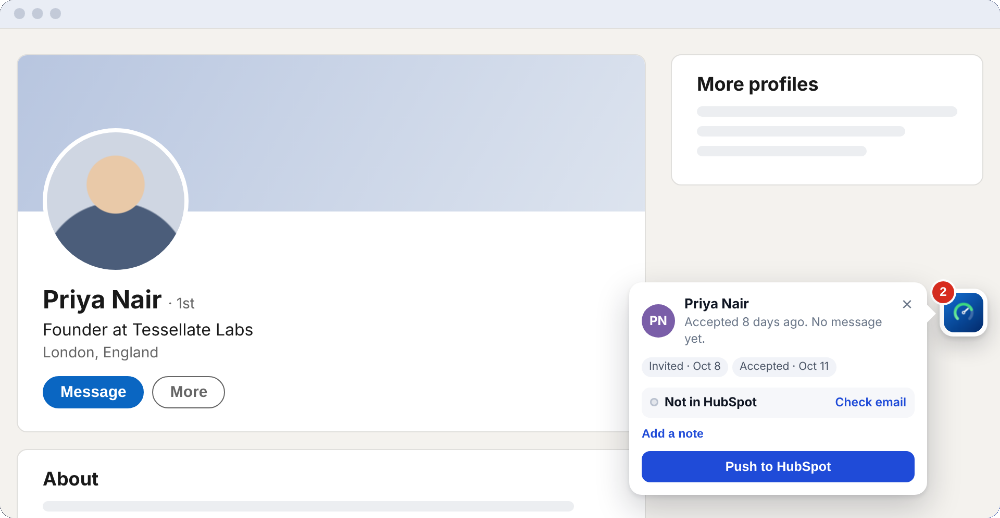
Outscore already shows “In HubSpot” with the owner and the stage on every LinkedIn profile that is a contact. Edit sits in the same place, so the record you are changing is the one the card found, not one you searched for by name.
- Open the profile and the Details. On a LinkedIn profile, the Outscore card reads In HubSpot with the owner and the stage. Click Details. Open in HubSpot is in the card menu (the three dots) in case you want the full record, and the panel icon opens the side panel.
- Click Edit. Edit stands alone at the end of the details. The form opens with the eleven fields filled from what HubSpot has right now. Empty stays empty. Opening the form writes nothing.
- Change what moved. Owner is a list of your portal's active owners, you first, then Nobody. Lifecycle stage and Lead status offer HubSpot's standard values; if the record holds a custom value, it is kept unless you pick something else. Job title, company, email, phone, mobile, city, state and country are plain text. Email and phone appear only inside the form, never on the LinkedIn page at rest.
- Save. The Save button counts what you changed (Save 1 change, Save 2 changes). Only those fields are sent, in one request, from your browser to your HubSpot. The card updates, and so do the side panel, the drawer and the People page, without asking HubSpot again. Cancel or Escape closes the form with nothing written.
The same Edit is offered wherever Outscore shows the HubSpot record for a person: on the conversation card inside LinkedIn Messaging, in the side panel’s This person box, and in the dashboard drawer. It is not on the People page rows, where Check and Push stay; the drawer is one click away. And it only appears for someone who is already in HubSpot. Not in HubSpot gets Push, which creates the record, and Maybe in HubSpot asks the same-person question first.
What you can change, and what you cannot
The form is deliberately short. It holds the properties that change after a conversation, and leaves the rest to HubSpot.
| Field or object | From the LinkedIn page? | Notes |
|---|---|---|
| Contact owner | Yes | Any active owner in your portal, you first, then Nobody. |
| Lifecycle stage | Yes | HubSpot's standard values. Backward moves are cleared, set and read back (see below). A custom stage is kept unless you change it. |
| Lead status | Yes | HubSpot's standard values. If your portal uses its own list, the form says so and that list is marked from then on. |
| Job title, Company | Yes | Plain text, filled from the record. |
| Email, Phone, Mobile | Yes | Shown inside the form only, after you click Edit. An email another contact already has is refused by HubSpot; the form links the other record and never merges. |
| City, State, Country | Yes | Plain text, filled from the record. |
| Deals | No | Open in HubSpot, one click away. |
| Custom properties | No | Only the eleven standard properties above. |
| Notes and the timeline | No | Conversations reach the timeline through Log to HubSpot, not through Edit. |
| Associations (company, deals) | No | The company link is set by a push; Edit does not touch associations. |
| Street address, postal code, website | No | Not in the form. |
Why a push never overwrites but an edit does
A push is a guess made on your behalf. It takes what the LinkedIn profile shows and offers it to the record, and because you did not look at each field, it is fill-only: a field you already filled in HubSpot is never overwritten. (The LinkedIn URL is the one exception, always written, so the record stays findable. The owner is written only when the record has none, so a push never moves a contact away from a teammate.) Lifecycle stage and lead status are not even on by default for a push. That rule protects the careful work in your CRM from a headline someone wrote on LinkedIn three years ago.
An edit is the opposite situation. You opened the form, read the current value, and typed a new one into that one field. There is no guessing left to protect against, so Save replaces the old value with yours. It does that only for the fields you changed; anything you left alone is not sent at all. If you clear a field and save, the field is cleared in HubSpot, because that is what you asked for.
So the two live side by side without conflict. Push to create and fill. Edit to correct and move. Neither one changes the other’s rules.
Moving someone backward in the lifecycle
It happens: a deal you marked Opportunity falls through and the person should go back to Lead, or a stage was set by mistake. HubSpot’s contacts API will not do that in a single write. It only moves the stage forward in the order your portal defines, and a backward write can come back as a success without changing anything, which is the quiet kind of failure nobody notices for a month.
Outscore handles it the way HubSpot’s documentation says to. When you pick an earlier stage, it first clears the stage, then sets the one you chose, then reads the record back and compares. If the stage really changed, the form confirms what was saved. If HubSpot kept the old stage anyway, the form says so in one line (HubSpot kept Lifecycle stage as it was), so you can fix it in HubSpot instead of believing a green tick. No write is ever retried on its own.
What happens when HubSpot says no?
Three cases come up, and the form keeps what you typed in each of them.
Your portal uses its own list
Some portals replace the standard lead statuses or stages. If HubSpot rejects a value, one line explains that this portal uses its own list and asks you to set it in HubSpot, your other changes stay in the form, and that dropdown is marked from then on so you are not caught twice.
Another contact already has that email
HubSpot refuses, and the form links the other record so you can decide. Outscore never merges two contacts; that is your call to make in HubSpot, with both records in front of you.
Your key cannot change contacts
If the HubSpot key you connected with cannot write contacts, the form says so and Open in HubSpot stays one click away. Every key created through Outscore’s connect flow has the write scope, so this one is rare.
What is free and what is Pro?
Editing is a Pro feature, and it is free during the 14-day trial that every new install gets. Free to start, no card. After the trial, the free plan still answers yes or no on every profile, with Open in HubSpot one click away; the owner, the stage and the Edit form come with Pro. Pro is $10 a month, billed yearly, or $15 month to month, your choice at checkout.
The HubSpot allowance is separate from the trial: your first 10 people in HubSpot are free on every install (a push, a logged conversation, a task or a company each use one person’s slot; the same person again is free), plus 3 more people whose conversations you can log as a try-out. Beyond that, Pro. Connecting HubSpot is free and works with HubSpot’s free CRM. It needs a super admin or a user with developer tools access, once, to create a service key in their own account; the key stays in the browser. Not an admin? Ask my admin sends yours a link to set it up. A read-only connection with your own HubSpot personal key shows All properties view only: editing needs a full key.
On privacy: when you click Edit, Outscore reads the record’s title, company, email, phone, mobile, city, state and country to fill the form, from your HubSpot into your browser. It does not read them before you click. The save goes from your browser to your HubSpot. Nothing is sent to Outscore’s server, and the only thing Outscore counts is that an edit happened and which field names changed, never the values. No automation. It never sends invitations or messages. The only thing it does on LinkedIn for you is withdraw an invitation you pick, when you press Withdraw.
Frequently asked questions
Can I edit a HubSpot contact from LinkedIn without opening HubSpot?
Yes. With Outscore, a person who is already in HubSpot gets an Edit button on the LinkedIn profile card (under Details), on the conversation card, in the side panel and in the dashboard drawer. Edit opens a short form filled from the HubSpot record. Save writes only the fields you changed, in one request, from your browser straight to your HubSpot. Nothing is written until you press Save.
Which HubSpot fields can I change from LinkedIn?
Eleven standard contact properties: owner, lifecycle stage, lead status, job title, company, email, phone, mobile, city, state and country. Owner lists the active owners in your portal, you first, then Nobody. Lifecycle stage and lead status offer HubSpot's standard values; a custom value stays as "keep". Deals, notes, custom properties and associations are not part of the form.
Will editing from LinkedIn overwrite what is already in HubSpot?
For the fields you change, yes, because you asked for it one field at a time. That is the difference from a push: a push is fill-only, so a field you already filled in HubSpot is never overwritten by it. An edit is explicit, so it replaces the old value with the one you typed. Fields you leave alone are not sent at all.
Can I change the contact owner to a teammate from LinkedIn?
Yes. The owner list holds every active owner in your HubSpot portal, so you can hand a contact to a teammate, or take one that a teammate owns. The change lands on the record the moment you save, the same as if you had done it in HubSpot.
Why does HubSpot refuse to move a lifecycle stage backward?
HubSpot's contacts API only sets the lifecycle stage forward in one write; to move it back you first have to clear the stage. Outscore does that for you: it clears the stage, sets the one you picked, then reads the record back. If HubSpot kept the old stage anyway, the form tells you in one line instead of pretending it worked.
Does editing need a new HubSpot permission, and does Outscore see the values?
No new permission. Edits use the contacts write scope every Outscore connection already has, and the owner list uses the owners read scope it already has. The form is filled and saved from your browser to your HubSpot directly. Nothing is sent to Outscore's server; the only thing Outscore counts is that an edit happened and which field names changed, never the values.