
On your phone? Outscore is a Chrome extension, so it runs on a computer. Get the link by email and open it there.
This page is for people whose assistant already reads their HubSpot, through HubSpot’s MCP server or a connector, and who want it to know what happened on LinkedIn: who they connected with, what was said, where each relationship stands. If you do not use a CRM, the no-CRM route (LinkedIn’s export, a CSV, or a webhook) is in how to use Grok to review your LinkedIn conversations. Here, the record of the relationship lives in HubSpot and the assistant reads HubSpot.
Key facts: what an assistant can read in HubSpot
| Question | Answer |
|---|---|
| Which activities does HubSpot's MCP server read? | Calls, emails, meetings, notes and tasks, plus contacts, companies, deals and the other CRM objects. LinkedIn messages are not listed (checked 1 November 2026). (HubSpot developer docs) |
| How does HubSpot store LinkedIn messages logged by a tool? | As communications with the channel type LINKEDIN_MESSAGE, each with a timestamp that places it on the record timeline. (HubSpot developer docs) |
| What hides even notes from the assistant? | Sensitive Data turned on in the HubSpot account. Then activity data, notes and tasks included, and conversation data are blocked from the MCP server. (HubSpot developer docs) |
| Why do logged LinkedIn message activities not show on my contact? | In a fresh HubSpot portal the activity filter on a record has LinkedIn unticked. The activities exist; tick LinkedIn in the filter to see them. |
| Can anything read my LinkedIn inbox in the background? | No. LinkedIn has no API for personal messages. Outscore reads only a conversation you open and choose to add. |
Sources: HubSpot’s remote MCP server and HubSpot’s communications API. Last verified 1 November 2026.
Can an AI assistant read my LinkedIn messages?
No, not directly. There is no LinkedIn connector for ChatGPT, Claude or Grok that reads your inbox, and LinkedIn offers no API for personal messages. Any tool that claims to feed your whole inbox to a model is running automation on your account, which is the thing LinkedIn restricts accounts for. So the honest answer to “can my assistant see what I said to this person on LinkedIn?” is: only if you put it somewhere the assistant can read.
For people who run their business from HubSpot, that somewhere is already decided. The assistant is connected to HubSpot. The question becomes how to get the LinkedIn part of a relationship onto the HubSpot contact, in a shape the assistant can see.
Why HubSpot is the place your assistant can read
Because HubSpot built the door. Its remote MCP server gives an assistant read access to contacts, companies, deals and the activities on them: calls, emails, meetings, notes and tasks. Connect once, and “what do I know about Dana?” becomes a question the assistant can answer from the record. The same door also serves connectors that products ship for HubSpot. Either way, the record is the source of truth, and anything you want the assistant to know has to be on the record.
That is a feature, not a limitation. A HubSpot contact with a company, a stage, a few notes and the LinkedIn thread is a better brief than a raw inbox. The assistant sees the relationship with its context, not a pile of messages.
Notes or LinkedIn-message activities: which one can the assistant see?
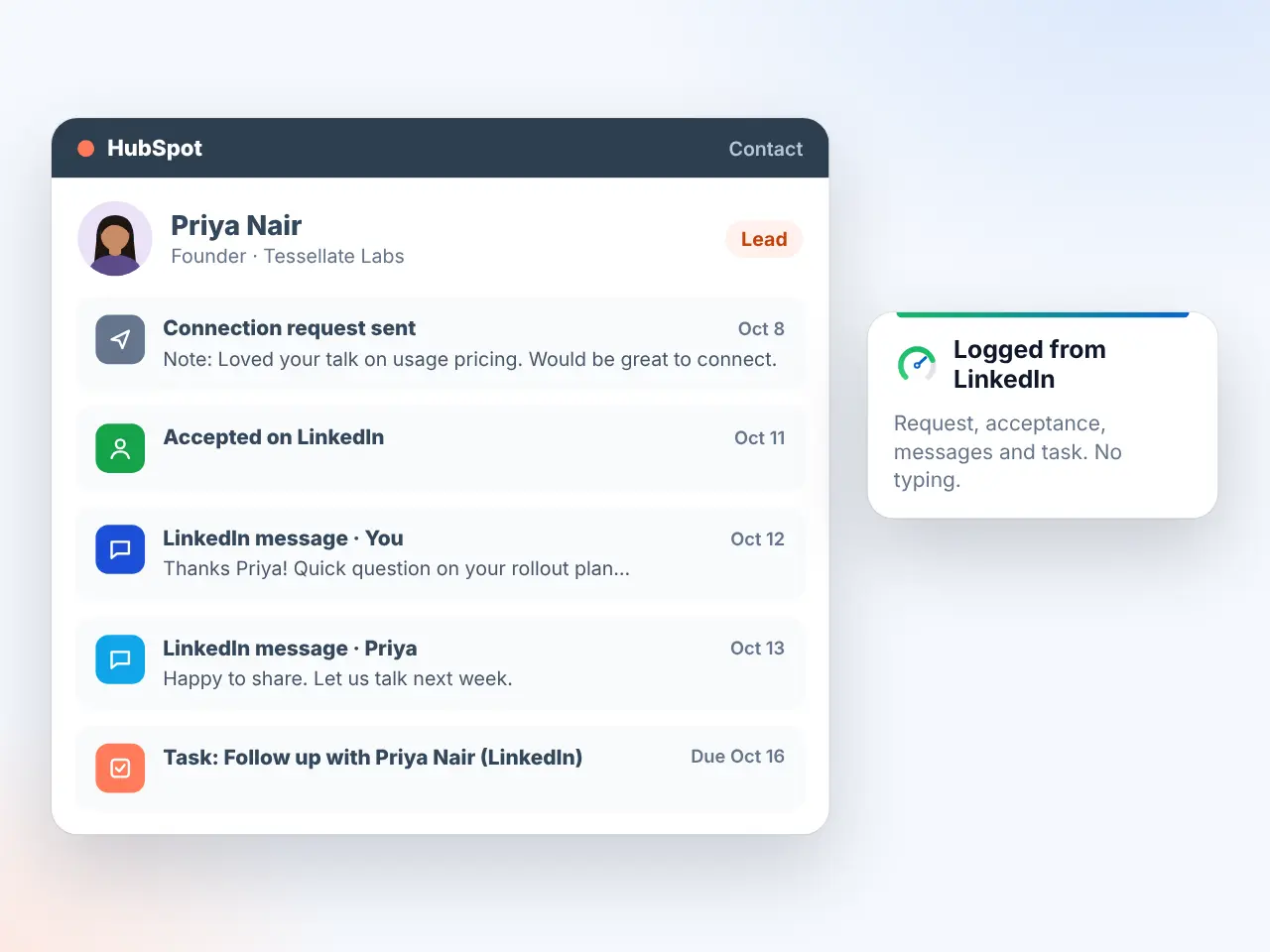
Notes. HubSpot has two ways to hold a LinkedIn conversation on a contact. The purpose-built one is a LinkedIn message activity, a communication with the channel type LINKEDIN_MESSAGE, one per message, each with the real time it was sent. It looks right on the timeline and sorts in order with your emails and calls. The other is a plain note.
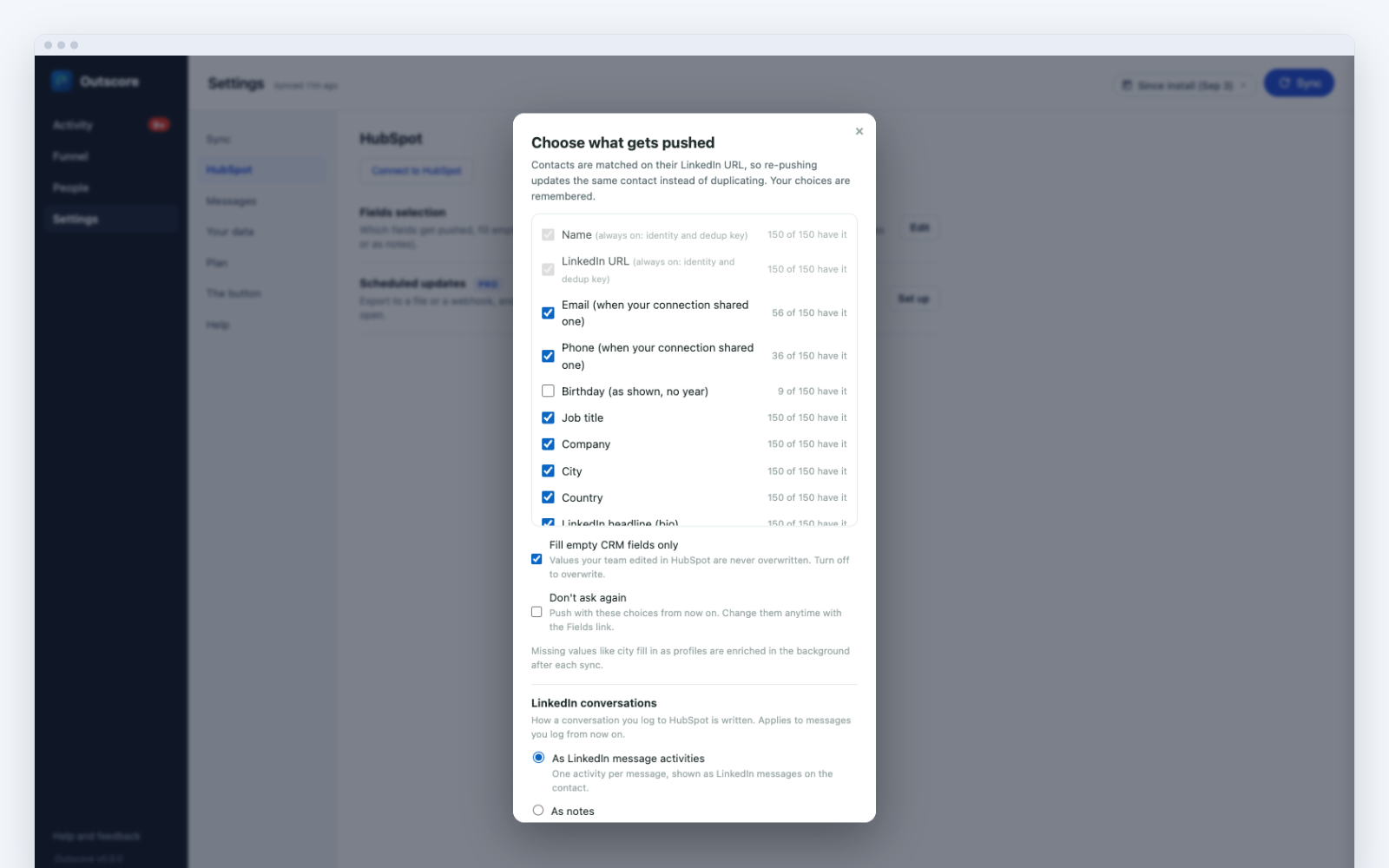
HubSpot’s MCP server page lists notes among the activities it reads and does not list LinkedIn messages (checked 1 November 2026). So if an assistant reads your HubSpot, log as notes. Outscore gives you the choice in Settings, HubSpot, Fields selection, under LinkedIn conversations: “As LinkedIn message activities” (the default) or “As notes”. As notes, each log is one note holding only the messages that are new since the last log, timestamped at the newest message. Logging again sends only new messages, and the ledger is shared between the two formats, so switching never re-sends a message.
How to get a conversation from LinkedIn into HubSpot as a note
- Connect HubSpot once. Install Outscore, click Connect to HubSpot, and follow the guide that opens on HubSpot's own page to create a key in your account. Needs a super admin or a user with developer tools access, once. The key stays in your browser.
- Pick notes. Settings, HubSpot, Fields selection. Under "LinkedIn conversations", choose "As notes".
- Open the conversation on LinkedIn. A bar appears above the message box. The first time it asks "Add this full thread to Outscore?" and explains that it reads only conversations you open and add, never your whole inbox. Click "Add thread".
- Click Log to HubSpot. For someone already in HubSpot, "Log to HubSpot" writes the thread onto their record. For someone tracked but not in HubSpot yet, a box asks "Where should this thread go?": pick "Push and log to HubSpot" to create the contact and log in one go, or "Save to Outscore only".
- Update as the thread moves on. When new messages arrive, the bar shows "Update". Click it and only the new messages go into a new note.
- Ask the assistant. The note is on the contact. Ask your assistant about the contact by name and it will find it with the rest of the record.
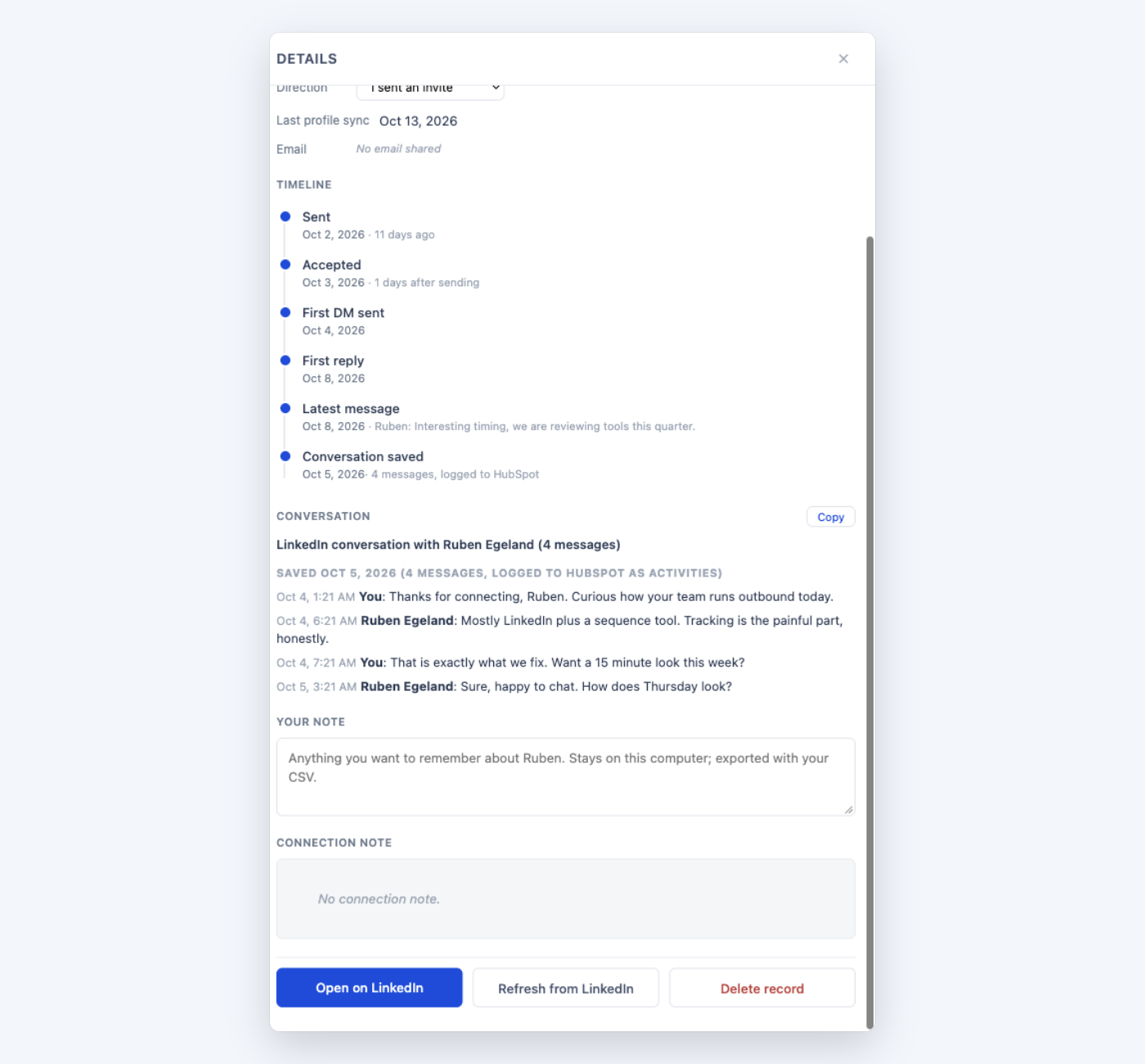
Log on purpose. The buyer, the partner, the advisor you are courting: yes. The recruiter from 2022: no. Every log uses one of your free slots the first time for a person, and it also decides what your assistant will spend attention on.
What the assistant knows about every pushed contact, without you logging anything
More than you would think. Every contact Outscore pushes gets one timeline note, written once, with how the connection happened. If you sent the request: “Sent a LinkedIn connection request” with the date sent, the date accepted and the days between. If they sent it: that you connected on LinkedIn and they sent the request. If there was an invitation note, it is quoted. And if you turn on the “Your Outscore note” push field, the note you wrote on the person in Outscore (“met at the board dinner, wants an intro to our CFO”) goes into the same timeline note.
That note is a note, so the assistant can read it. It means a question like “who did I connect with on LinkedIn this month?” works on pushed contacts even if you never logged a single conversation. The contact fields come along too: job title, company, city, country, the LinkedIn headline, and email or phone when the person shared one. Tags you add in Outscore stay in Outscore; they never go to HubSpot.
What an assistant connected to HubSpot can and cannot know
| It can | It cannot |
|---|---|
| Read the notes on a contact, including the LinkedIn conversations you logged as notes and the timeline note from the push | Read your LinkedIn inbox, or any conversation you did not log |
| Read your tasks, including "Follow up with <Name> (LinkedIn)" tasks | See LinkedIn message activities, which its MCP server page does not list |
| Read contact properties: name, company, title, city, country, headline, LinkedIn URL, owner, stage | See your Outscore tags, your acceptance rate, or anyone you never pushed |
| Draft a message, a summary or a list for you | Send anything on LinkedIn, or change anything on LinkedIn |
| Read notes and tasks while Sensitive Data is off in your HubSpot account | Read any activity, notes included, once Sensitive Data is turned on |
Prompts that work
These assume the assistant is connected to HubSpot and your LinkedIn conversations are logged as notes. Replace <name> with the contact’s name as it appears in HubSpot. Copy them as they are; adjust the time windows to your pace.
Before my call with <name> tomorrow: read the notes on their HubSpot contact record, including the LinkedIn notes. Summarize how we connected, what we have discussed on LinkedIn, anything I promised, and list the open questions I should raise.Which HubSpot contacts have a note saying we connected on LinkedIn in the last 30 days, and have no other activity since? Give me name, company, the date we connected, and the first line of the note.Look at the LinkedIn notes on my HubSpot contacts from the last 14 days. Where the last message in a note is from the other person, not from me, list them. For each, say what they asked.Draft a short follow-up message to <name> based on the most recent LinkedIn note on their HubSpot record. Keep my tone, under 80 words, one clear ask. I will send it myself.Weekly review: across HubSpot contacts with LinkedIn notes updated this week, which conversations moved forward, which stalled, and which three deserve my time on Monday? One line each with the reason.List my open HubSpot tasks whose subject contains "(LinkedIn)". For each, read the notes on the contact and tell me in one line what the follow-up should be about.The “replies I owe” prompt depends on the notes containing who wrote each message. Outscore’s notes do: every message carries who wrote it and when. The task prompt works because Outscore’s follow-up tasks all share the same subject pattern; how to create them from the profile is in how to schedule LinkedIn follow-ups as HubSpot tasks.
The one rule: the AI drafts, you send
Let the assistant read, summarize, rank and draft. Do not let anything send on LinkedIn for you. LinkedIn’s User Agreement prohibits automated activity on the site (LinkedIn Help a1340567), and a model firing off messages is the textbook case. Everything on this page moves your own data into a system you control and reads it there. Nothing in it sends, clicks or connects on LinkedIn. Outscore never sends invitations or messages; the only thing it does on LinkedIn for you is withdraw an invitation you pick, when you press Withdraw.
There is a quality reason too. A draft you read, cut by half and send in your own words lands better than anything a model sends unread. Use the draft as the starting point.
What about privacy and Sensitive Data?
Two separate things. First, you are choosing to put conversation text in HubSpot and to let an AI provider read HubSpot. Make it deliberate: check your company’s AI policy, prefer an assistant plan whose terms say your data is not used for training, and log only the conversations that belong in a CRM. Outscore reads only the conversation you open and choose to add, one thread at a time, and only you decide which.
Second, HubSpot’s own switch. If Sensitive Data is turned on in your HubSpot account, HubSpot blocks activity data (calls, emails, meetings, notes and tasks) and conversation data from the MCP server. Your notes are still there and still visible to people in HubSpot; the assistant just cannot read them. If the prompts above suddenly return nothing, that switch is the first place to look. HubSpot describes the block as applying to activity and conversation data, so the assistant should still see who is in HubSpot and where they work.
Frequently asked questions
Can ChatGPT, Claude or Grok read my LinkedIn messages?
Not directly. LinkedIn has no API for personal messages and no connector an assistant can use to read your inbox. What an assistant can read is a system you connect it to, such as HubSpot through HubSpot's MCP server. So the route is: log the LinkedIn conversations that matter onto the HubSpot contact as notes, and let the assistant read HubSpot.
Should I log LinkedIn conversations to HubSpot as notes or as LinkedIn message activities?
As notes, if an assistant reads your HubSpot. HubSpot's own MCP server lists calls, emails, meetings, notes and tasks among the activities it reads, and does not list LinkedIn messages (checked 1 November 2026). LinkedIn message activities keep the real timestamp of every message and look best on the timeline, but the assistant cannot see them. Outscore lets you pick either in Settings, HubSpot, Fields selection.
What does my assistant know about a LinkedIn contact I pushed but never logged?
The timeline note Outscore writes at push time: whether you sent the connection request or they did, the date sent, the date accepted and the days between, the invitation note if there was one, and your own note if you turned on the Your Outscore note push field. Plus the contact fields: name, LinkedIn URL, job title, company, city, country, headline, and email or phone when the person shared one.
Does this work with the free version of HubSpot?
Yes. Notes and contact properties are part of HubSpot's free CRM, and Outscore writes them through HubSpot's standard objects. Connecting needs a HubSpot super admin or a user with developer tools access, once, to create a key in your own HubSpot account. The key stays in your browser.
Why can my assistant suddenly not read any notes in HubSpot?
Check whether Sensitive Data was turned on in the HubSpot account. HubSpot's MCP server page says that when it is on, activity data (calls, emails, meetings, notes and tasks) and conversation data are blocked from the MCP server. The notes still exist; the assistant is just not allowed to read them.
What does it cost?
Free to start, no card. Your first 10 people in HubSpot are free on every install; a push, a logged conversation, a task or a company each use one slot, and the same person again is free. Plus 3 more people whose conversations you can log as a try-out. Beyond that, Pro: $10 a month, billed yearly, or $15 month to month, your choice at checkout.